

Disney+ offers a vast library of captivating shows and movies from Disney, Marvel, Star Wars, Pixar, and National Geographic. To fully enjoy this content on your Smart TV, you need a smooth streaming experience. If you’re experiencing issues with Disney+ video playback on your TV, such as buffering, connection errors, or poor video quality, this guide provides effective troubleshooting steps. Let’s dive into the solutions.
Read Also:
If Disney+ freezes, crashes, or fails to load, verify that your TV and operating system are officially supported. While older TV models may still display the Disney+ app, they may lack necessary security updates, DRM support, or the ability to render modern high-bitrate streams such as 4K HDR.
Check the list below to see whether your TV or TV devices support Disney+:
If Disney+ fails to load, crashes on launch, or buffers continuously, an unstable or slow internet connection is usually the cause. Follow these steps to diagnose and resolve network-related streaming errors:
Step 1. Open other streaming apps on your TV or run a quick speed test on a phone or computer connected to the same Wi-Fi network.
Step 2. If other apps also fail or load slowly, your local network connection is experiencing instability. Try rebooting your router. It will clear temporary network congestion and assign a fresh IP address to your streaming device.
To do this, unplug your router, wait for about 30 seconds, and then plug it back in. Relaunch Disney+ and attempt streaming again.
Step 3. If internet network speeds remain slow or drop across all devices, contact your internet service provider (ISP) to check for local signal throttling or outages.
If your Wi-Fi network is active but Disney+ still refuses to load or displays error codes (such as Error 83 or Error 142), the problem may be due to a service-wide outage or server maintenance on Disney’s end.
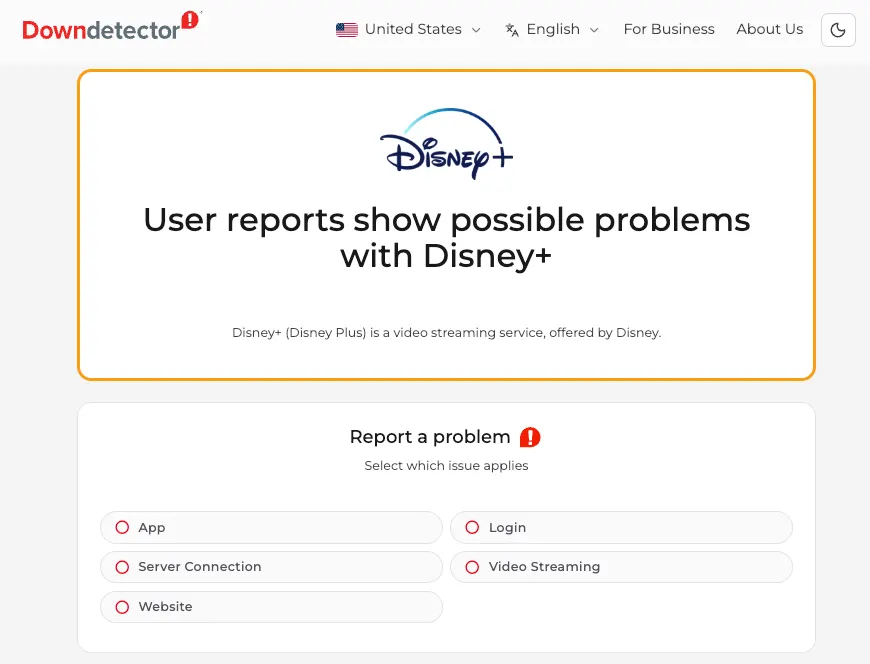
To confirm, test the Disney+ app on another device, such as your laptop or phone. You can also check Disney+’s official social media accounts or third-party sites such as Downdetector for updates on server disruption. If the servers are down, you’ll need to wait until Disney resolves the outage and restores service.
Try completely closing the Disney+ app and terminating any other background processes. It will flush temporary application memory and resolve minor software freezes or UI stalls.
Over time, security tokens and account credentials cached on the device can expire or become corrupted, causing Disney+ authorization loops, black screens, or generic playback errors. Signing out of your account forces Disney+ to issue fresh security credentials upon your next login.
To sign out and log back in to Disney+ on TV:
Outdated app builds or corrupted cache files can prevent Disney+ from opening, cause audio desync during playback, or trigger error codes. Updating or reinstalling the app ensures you are running the latest software and DRM security certificates.
Go to the app store on your TV to install any available update of Disney+. If updating does not resolve the issue, uninstall and reinstall the app to delete corrupted temporary data stored on your system.
Over extended use, smart TVs accumulate background system logs, system cache, and memory leaks that cause video streaming apps to crash or become unresponsive. Performing a full power drain clears volatile memory (RAM):
Turn off your TV using the remote control. Unplug the TV’s power cable directly from the wall outlet or surge protector. Wait at least 60 seconds. Plug the power cable back in, turn on your TV, and relaunch Disney+.
Over time, cached data files accumulated by streaming apps can become corrupted, leading to black screens, audio desync, or loading loops. Follow the specific steps for your operating system to clear temporary files:
Note: Clear Data will log you out and require re-entry of your credentials
Ensure that your TV is running the most up-to-date operating system. An outdated OS can cause Disney+ stream buffering or lead to DRM licensing handshake failures. Typically, you can go to Settings on your TV to check for any available system updates.
To prevent Disney+ playback issues on your TV and enjoy your favorite movies and shows offline anytime, consider downloading them as MP4 files.
While Disney+ supports downloads for offline viewing, this feature is restricted to Premium subscribers on compatible mobile devices. Furthermore, these downloads are limited to the Disney+ app and cannot be transferred to other devices, such as smart TVs. To permanently store your downloads and watch them on any device, converting Disney+ content into local MP4 files is the most effective solution.
Pazu Disney Plus Downloader allows you to download movies and TV shows using either an Ad-Supported or Premium plan. It exports videos in MP4 or MKV formats while preserving multi-language audio tracks and subtitle options. This makes it easy to transfer your downloads to an SD card or USB drive for offline playback on any compatible device. Powered by a smart search engine and an optimized downloading core, Pazu Disney+ Video Downloader delivers high-quality video downloads across both Windows and Mac platforms.

Download Disney+ movies & TV shows to MP4 with HD quality.
The following is a detailed tutorial on downloading movies and TV shows from Disney+ with Pazu Disney+ Video Downloader.
Download, install, and launch Pazu Disney+ Video Downloader on your Mac or Windows. Select Disney and log in to your Disney+ account. Click the Settings icon > “Register” and enter your registration code to unlock the full version if you have purchased a registration. If you haven’t, go ahead with the free trial version.

Click on the Settings button in the upper right corner and select “Preferences” to customize the video format (MP4/MKV), video codec (H.264, H.265), and output path, select the language of audio tracks and subtitles, etc.

Click the Search tab at the top and enter the movie/TV show title.

Or copy and paste the link of the movie/TV show from the Disney+ website. Then click the Search icon.

Click the Download icon to start downloading a movie. For a TV show, clicking the Download icon will add the episodes to the download list. Uncheck any episodes you don’t want and click the Download button.
Before downloading, click the Settings icon next to the Download icon to choose the audio and subtitles languages for the movie or each episode.

The download begins. Once done, click the History tab > the Folder icon to quickly locate the MP4 files. Then you can transfer them to play on any supported device.


Download Disney+ movies and TV shows to MP4/MKV on your PC/Mac