

Disney+ offers different video qualities to suit various internet speeds and devices, with its best being 4K Ultra HD with HDR. This highest resolution transforms your viewing experience with sharper details, vibrant colors, and incredible clarity.
However, many subscribers only see an “HD” tag under movie and show titles. Achieving 4K streaming requires a Disney+ Premium plan, a stable 25+ Mbps internet connection, and a 4K-supported Smart TV, streaming device, or spatial headset. Neither computer web browsers nor mobile apps support 4K streaming or 4K downloads—mobile devices and browsers max out at 1080p HD.
In this guide, we’ll explain the specific settings, hardware requirements, and download options needed to get 4K quality or the best visual output from Disney+.
Contents
Disney+ typically offers three video quality options: Automatic, Moderate, and Save Data, with “Automatic” targeting the highest resolution supported by your device and network speed. However, the actual resolution these settings provide varies by device.
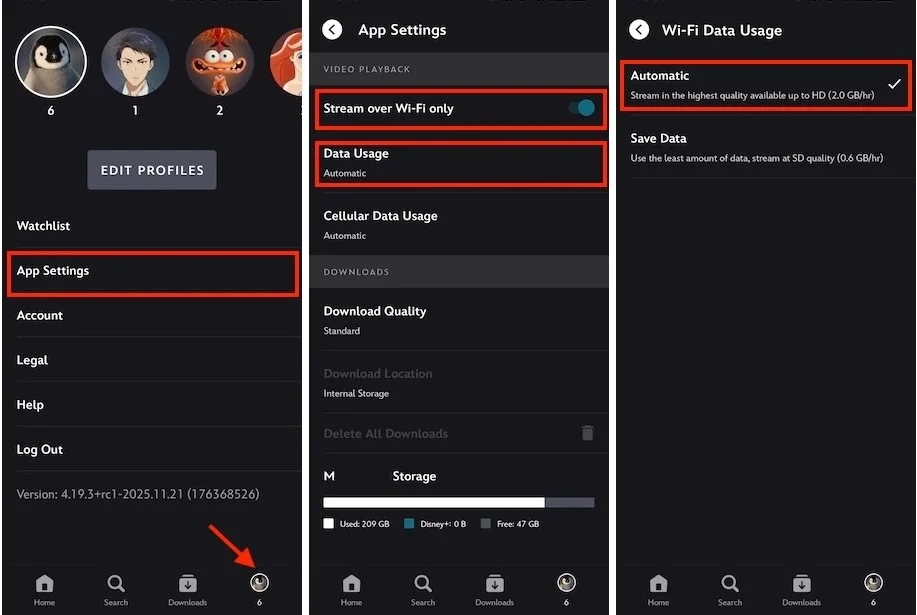
On mobile devices (iOS, Android, Fire tablets), there’s no “Moderate” option, and a “Stream over Wi-Fi only” option is added. You can enable it to get the highest possible streaming video quality without incurring mobile data charges.
To get the best possible video resolution on Disney+, make sure to enable the “Automatic” setting in your Disney+ app or web player. (On mobile devices, you can also enable “Stream over Wi-Fi only” to avoid data charges.)
Here is the maximum resolution you can expect based on your device:
Disney+ also offers SD quality (480p using 0.6 GB – 0.7 GB per hour) when enabling “Save data.”
Check the following table outlining the video quality options and the maximum Disney+ resolution for different devices.
| Disney+ Video Quality Settings | Stream over Wi-Fi only | Automatic | Moderate | Save data |
| Android/iOS/Fire tablet | 1080 HD | HD | N/A | SD |
| Web browser (Mac/PC) | N/A | 720 HD | N/A | SD |
| Windows web-based App | N/A | 720 HD | N/A | SD |
| Smart TV/TV devices | N/A | 4K Ultra HD | 1080 HD | SD |
| Vision Pro 2D/3D | N/A | 4K Ultra HD | 1080 HD | N/A |
To achieve 4K quality on Disney+, you’ll need a compatible setup across your subscription, device, internet, and app settings. Missing even one piece of the puzzle can limit your resolution.
Disney+ offers both ad-supported and ad-free plans, but video quality settings can vary by region. The Premium (No Ads) plan generally supports the highest quality up to 4K UHD and HDR video. However, other plans may vary by country. For example:
So check the features of your Disney+ plan in your region to confirm it supports 4K content. If it doesn’t, you will need to upgrade your subscription to the Premium tier or a Premium bundle, such as Disney+ Hulu Bundle Premium or Disney+, Hulu, HBO Max Bundle (No Ads).
As mentioned earlier, Disney+ supports streaming 4K UHD and HDR video on Vision Pro, 4K Smart TVs, and popular TV-connected devices such as streaming boxes (Roku, Apple TV 4K), Xbox consoles, and PlayStation consoles.
If your streaming device is connected to your 4K TV with an HDMI cable, ensure you use an HDMI 2.0 (or 2.1) cable and plug it into an HDMI 2.0-compatible port on your TV. Older HDMI 1.4 ports cannot handle 4K UHD.
Disney+ recommends a stable download speed of at least 25 Mbps for 4K UHD streaming, especially when other devices are using your network. You can test your internet speed with online tools such as “speedof.me” or “fast.com.”
Enable the “Automatic” option in the Disney+ app on your 4K-supported devices to stream the highest-quality video automatically.

Not all content on Disney+ is available in 4K. Go to the detail page of a movie or show and find the “4K Ultra HD” tag under its title. To quickly find 4K titles on Disney+, go to the “4K Ultra HD HDR” collection on the Home page, or use the “Ultra HD and HDR” filter on the movies and series pages.

Unfortunately, you cannot have 4K quality on Disney+ on mobile devices, Mac/Windows web browsers, or the Windows app. The maximum streaming quality on these platforms is 1080p Full HD or 720p HD, which is supported by both the With Ads and No Ads subscription tiers.
Here’s how you can enable “Automatic” settings on Disney+ to get the highest 1080p Full HD quality:
Note that if you do not enable “Stream over Wi-Fi only,” you may use cellular data when streaming, which could limit the maximum audio quality to HD 720p.

Disney+ Premium subscribers can download videos on mobile devices, including Android, iOS, and Fire tablets. Offline viewing is not supported on a TV-connected device, computer, or Windows 10 & 11 tablet.
You can select the download quality from three options: “High”, “Medium”, and “Standard.” “High” is the best available download quality, which is generally capped at 1080p Full HD. For instance, a 44-minute video downloaded at the “High” setting consumes 862 MB of storage, representing a highly efficient, top-tier HD file size for mobile playback.
Here is how to set the highest download quality on Disney+ with a Premium subscription:

If you want to download videos with ad-supported plans, try Pazu Disney Plus Downloader. It can help you download Disney+ videos directly to your Mac or Windows computer in MP4 or MKV formats. This tool also preserves multiple audio tracks and subtitles in various languages. After downloading, you can transfer and watch these videos on any device. With Pazu, you gain complete control over your offline library, and no longer worry about losing it when you log out, reinstall the app, or cancel your subscription.
Download Disney+ movies & TV shows to MP4 with HD quality.

Here’s a guide on how to use Pazu Disney+ Video Downloader to download movies and shows.
1. Run Pazu Disney+ Video Downloader
Download, install, and launch Pazu Disney+ Video Downloader on your Mac or Windows. Select Disney and log in to your Disney+ account.
If you have purchased a license, click the Settings icon > “Register” and enter your code to unlock the full version. Otherwise, go ahead with the free trial version.

2. Customize the download settings
Click Settings (the three-line icon in the upper right corner) and select “Preferences” to customize the video format (MP4/MKV), video codec (H264, H265), output path, and the language of audio tracks and subtitles, etc.

3. Download Disney+ movies/TV shows
Click the Browse tab on the toolbar. Find the movie or TV show you want to download with the built-in web player. Click the green + button at right to add the movie or TV show for downloading.

Or click the Search tab and find a movie or TV show by its title or link from the Disney+ website.
Click the Download icon next to a title. For a movie, it’ll start downloading right away.

For TV shows, click the Download icon to select episodes. Then, use the Download button at the bottom right to start downloading.
Before downloading, you can also use the line-and-gear icon to select audio and subtitle languages for the movie or each episode.

After the download is complete, click the History tab at the top to find the downloaded files. Then you can transfer and enjoy them on any supported device.

Related articles

Download Disney+ movies and TV shows to MP4/MKV on your PC/Mac