

As a Disney+ subscriber, you can enjoy your favorite films and series from the comfort of your home or take them with you on the go. Disney+ supports streaming on web browsers, mobile devices, tablets, streaming sticks, gaming consoles, smart TVs, and set-top boxes. However, sometimes you may want to update the Disney+ payment method.
Related: How to get Disney Plus free trial?
Disney Plus accepts various payment options, including PayPal, Disney Visa, VISA, Mastercard, American Express, and Discover.
To update the payment method for a subscription, if you pay through Disney+:

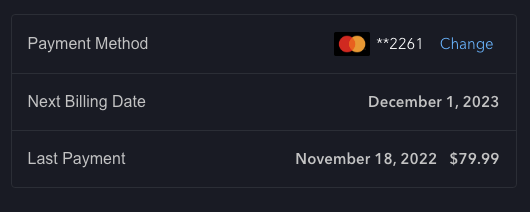
If you pay Disney+ through Hulu or a third party, the steps to update your payment information may be different. Please visit your third party’s help center or contact them to learn more.

Disney+ is the streaming home of Disney, Pixar, Marvel, Star Wars, National Geographic, and more. Disney+ With Ads plan costs $11.99/month. Premium plan costs $18.99/month or $189.99/year. Premium plan offers ad-free streaming and allows you to download movies/TV shows to watch on-the-go. You can also get Disney+ free trial.
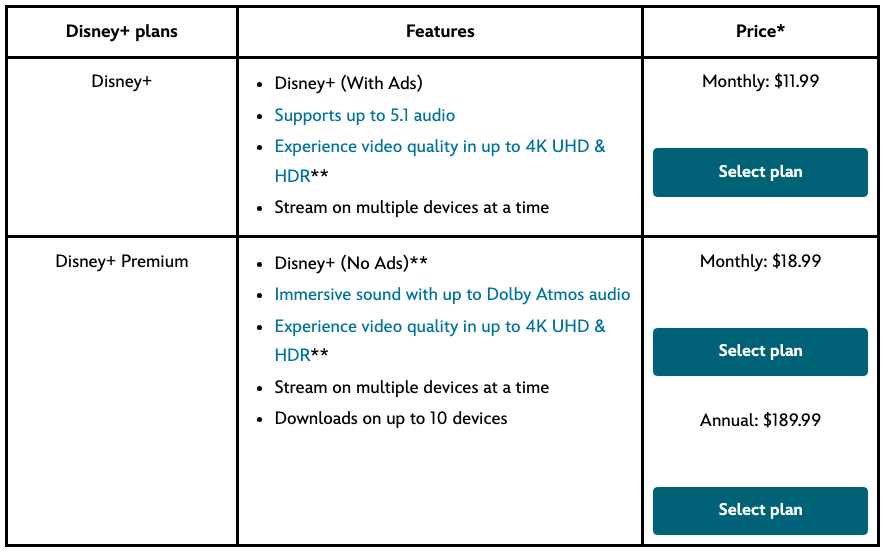
Disney+ only allows its premium subscribers to download content for offline viewing. If you have a Disney+ Premium subscription($18.99/month or $189.99/year), you can download movies and TV shows to your device for a limited time and watch them offline without an internet connection. Some titles may not be available for download due to licensing restrictions or other reasons. Also, the downloaded content is stored within the Disney+ app and cannot be transferred to an MP4 format or any other external media.
Luckily with Pazu Disney Plus Video Downloader, you can easily download Disney Plus movies and TV shows to MP4 or MKV with either Disney Plus Basic or Premium subscription. It is capable of directly downloading movies and TV shows on computers and supports saving videos in MP4 or MKV format with multi-language audio tracks and subtitles kept. Apart from the original subtitles, the program also lets you save the subtitle files as internal, external, and hardcoded subtitles. SRT file is also supported, so you can easily edit the subtitle files. Now we will show you how to use Pazu Disney Plus Video Downloader to download Disney Plus movies and TV shows to MP4.

Download Disney+ movies & TV shows to MP4 with HD quality.
The following is the detailed tutorial to download movies and TV shows from Disney+ with Pazu Disney+ Video Downloader.
Download, install, and launch Pazu Disney+ Video Downloader on your Mac or Windows. Select Disney and log in to your Disney+ account.
Click the Settings icon > “Register” and enter your registration code to unlock the full version if you have purchased a registration. If you haven’t, go ahead with the free trial version.

Click the Search tab at the top, type the movie/TV show title in the search field, and click the search icon.

Or copy and paste the link from the Disney+ web player. Pazu Disney+ Video Downloader will search for the content quickly and display the most related videos on the interface.
Click on the Settings button in the upper right corner and select “Preferences.” Here you can set the output format as MP4 or MKV, choose the video codec, and select the language of audio tracks and subtitles as needed.

Click the Download button on the right side. The downloading begins.

It’s easy to download Disney+ movies and TV shows on phone and tablet, however, you can only play the video on that device where it is downloaded. Luckily, with Pazu Disney+ Video Downloader, you can easily have a collection of downloaded Disney+ videos to play on any device. This professional tool is adept at downloading movies and TV shows from Disney+ in MP4 or MKV format, which makes the downloaded videos compatible with multiple devices and lets you play Disney+ videos anywhere and anytime.
Related articles

Download Disney+ movies and TV shows to MP4/MKV on your PC/Mac