

Disney+ allows Premium users to download movies and shows on mobile devices. However, this convenient feature can become frustrating if your downloads won’t start, fail, or even disappear. There are several reasons why Disney+ downloads are not working as expected, and most issues can be fixed with simple steps. This guide helps you diagnose Disney+ download problems and provides effective solutions, ensuring that your favorite Disney, Pixar, Marvel, and Star Wars stories are always available for offline viewing.
Disney+ actively blocks VPN services, which frequently leads to download errors and playback glitches.
Certain VPNs are incompatible with the platform, so you may encounter “no internet connection” error. Disney+ can also fail to verify your location, triggering unexpected download failures. Even with a functional VPN, specific titles may not be available for download in certain countries or regions due to content licensing restrictions.
For a smoother download experience, temporarily disable your VPN connection, restart the Disney+ app, and try downloading the content again. If you reside in or are traveling to a country or region where Disney+ is unavailable, try connecting through a verified compatible VPN or switching to a different server location.
If Disney+ downloads with the app are slow, incomplete, or never start, always check your internet connection first. A quick method is to try with another app or a different download. You can also test your internet speed directly in your browser using speed-testing websites such as fast.com or speedof.me.
The ideal download speed for High Definition (HD) videos (720p/1080p) is 5-10 Mbps and 1-3 Mbps for Standard Definition (SD) videos. For faster download speeds with the Disney+ app, also try the following fixes:
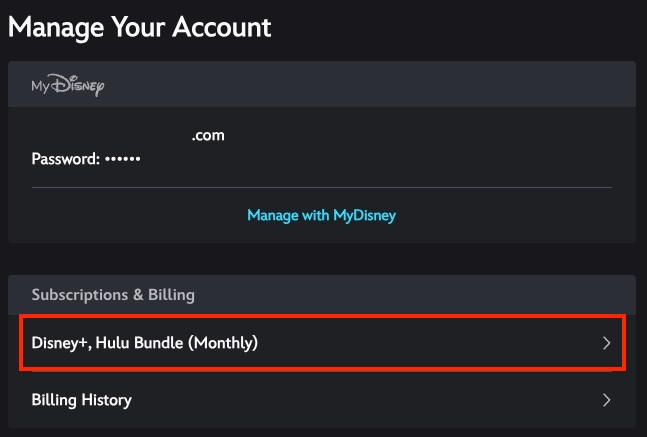
Only Disney+ Premium users can download content for offline viewing. This includes subscribers to both the Disney+ Premium plan and to bundles that include Premium. Disney+ With Ads plan or bundles don’t support the download feature.

Upgrade your Disney+ subscription to enjoy offline watching. You need to do this on a browser.
If you signed up for a Disney+ bundle with Hulu or HBO Max, you’ll need to change or upgrade your subscription through them.
Alternatively, you can use third-party software such as Pazu Disney Plus Downloader, which allows you to download content with any Disney+ subscription.
Disney+ Premium users can only download content on mobile devices, including iPhone, iPad, Android phones and tablets, Amazon Fire tablets, and Apple Vision Pro. You’ll also need to meet the system requirements to run the Disney+ app. Use a supported mobile device or update the device’s system if necessary.
To update the system on your phone and tablet.
If your internet connection is stable but Disney+ downloads are still failing or freezing, try force-closing the app (swipe up from the screen bottom and swipe the Disney+ app card away) and performing a full restart of your device. This process clears temporary system glitches, frees up memory, and refreshes background services, including the background task manager that handles offline downloads.
An outdated Disney+ app can be the reason why your download fails. Old app versions can contain bugs that interfere with new features or corrupted app data that affects downloads. Go to the App Store or Google Play Store on your phone or tablet to install any available updates for Disney+.
For better performance of the Disney+ app, you can enable auto updates on your device:
On iPhone

On Android

If updating doesn’t resolve the download issue, consider deleting and reinstalling the Disney+ app. Before proceeding, please keep in mind that reinstalling the app will remove all existing downloads, and you’ll need to log back in.
Disney+ offers three download video quality settings:
If your download issue is due to a slow internet connection, try switching the download video quality to Standard or Medium. This can also save storage space on your device.
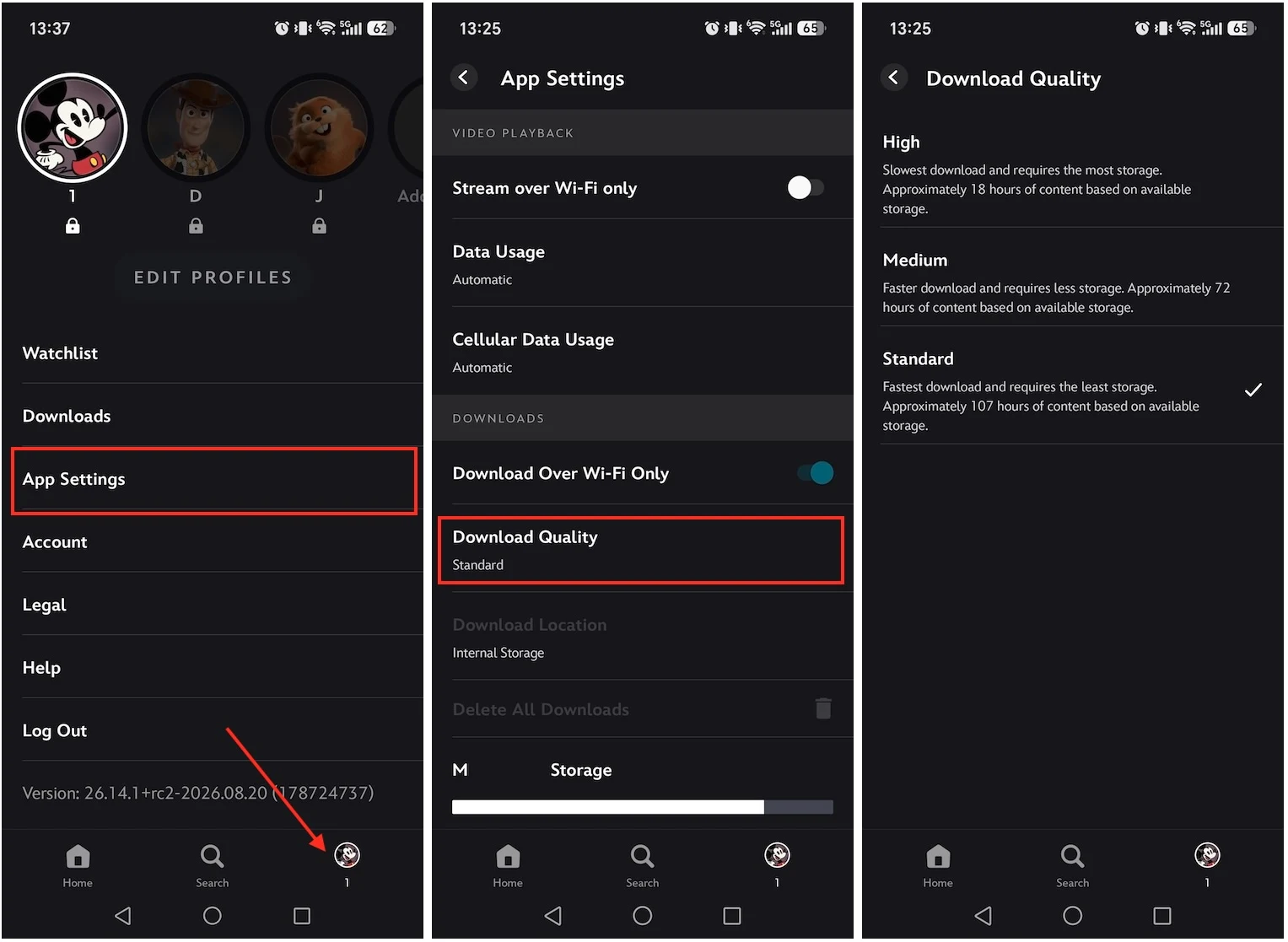
One often-overlooked reason for Disney+ download issues is running out of storage space on your device. This can cause failed or incomplete downloads, issues with the Disney+ app, and even slow down overall device performance.
You can check your available storage directly within the Disney+ app: Tap your Profile icon, select “App Settings,” and you’ll see the available device storage space at the bottom.
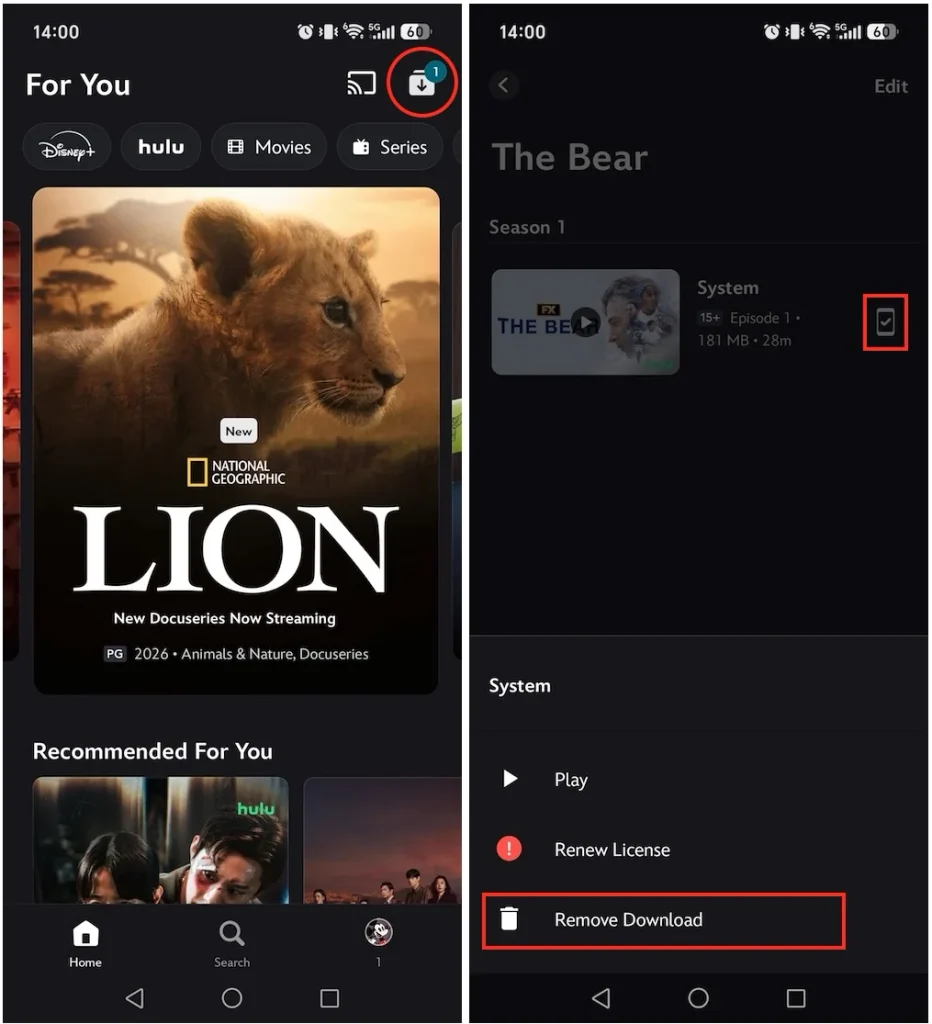
If you’ve already downloaded many titles with the Disney+ app, delete old or watched downloads to free up your storage space:
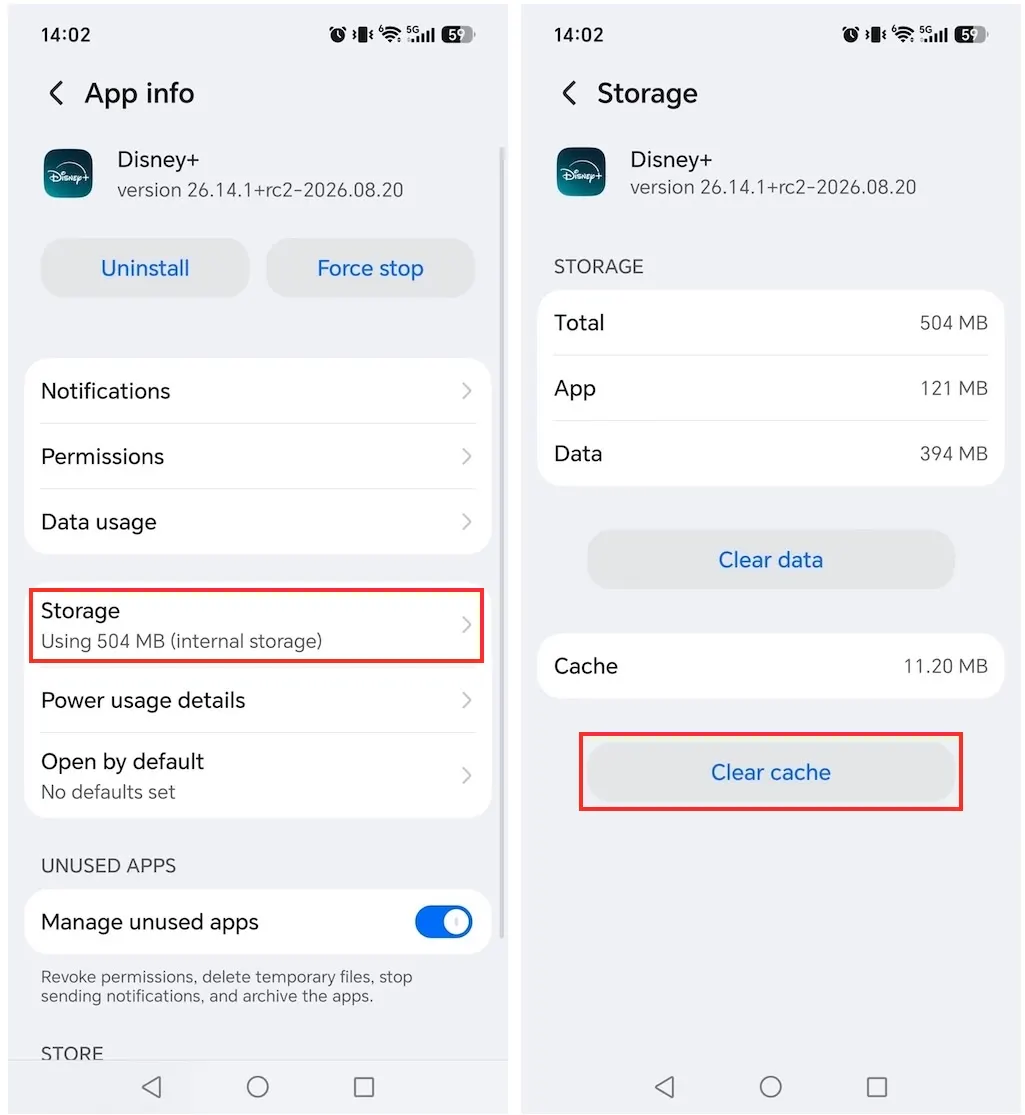
Over time, cached app files can become corrupted, triggering download failures, buffering, or UI crashes. Clearing the cache removes temporary files without logging you out or deleting your saved content.
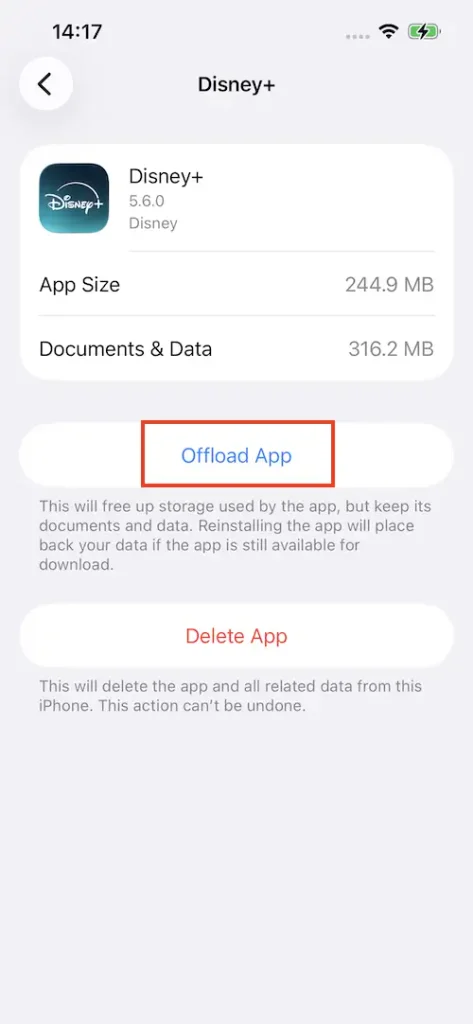
You can clear the Disney+ cache directly from system settings. Apple does not provide a dedicated “Clear Cache” button. To clear cached data on an iPhone or iPad, use offload.
How to Clear Cache of Disney+ on Android
Note: Do not tap Clear Data (or Clear Storage) unless you want to completely reset the app. Clearing data will sign you out of your account and remove all offline downloads.
How to Offload Disney+ on iOS
With the Disney+ app, you can download the same movie or episode on up to 10 mobile devices. If you’ve reached this limit, you won’t be able to download the title on your current device.
When you log out of the Disney+ app, all downloads will be removed. You’ll need to redownload them again after logging in. Downloaded content will also be removed if your device remains offline for more than 30 days.
Fix:
Related: What Are Disney+ Download Limits and How to Remove Them
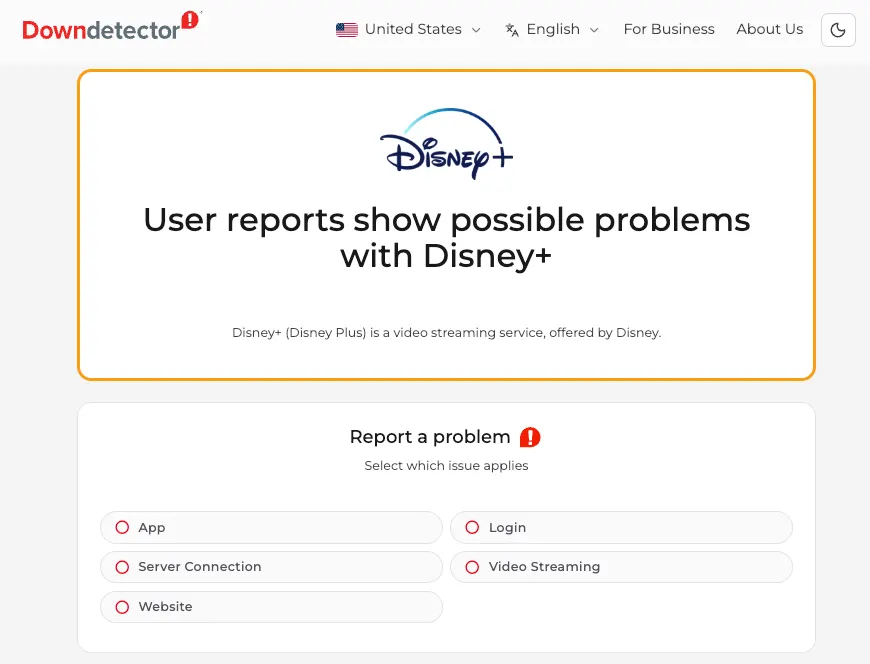
Occasionally, your download issues may be due to a Disney+ server outage. Visit Downdetector or a similar service to check for current problems. You can also check Disney+’s official social media platforms, such as Facebook and X, for updates on server status. If the issue is on Disney+’s end, you’ll simply need to wait for their service to return to normal.
Sometimes, you might encounter specific download issues or error codes on Disney+. Here’s how to address some common ones:
While Disney+ offers a vast library, not every title is available for offline viewing. This is typically due to:
Please also keep in mind that the download feature is only available to Disney+ Premium subscribers and on mobile devices. Downloading is not supported on a TV-connected device, computer, or Windows 10 & 11 tablet.
What to Do:
Here are the most common reasons your Disney+ downloads might disappear:
What to Do:
This error code means you have reached the maximum number of devices allowed for downloads (10 mobile devices) on your account.
What to Do:
These typically indicate internet connection problems or a temporary issue with Disney+’s server. They prevent the app from streaming or downloading content.
What to Do:
Error Code 73 indicates geographical restrictions: the content you are trying to download is not available in your region due to licensing. This error can appear when Disney+ detects a VPN and blocks access.
What to Do:
If your Disney+ downloads are still not working, try using a professional tool such as Pazu Disney Plus Downloader. It allows you to download Disney+ videos in MP4 or MKV format on both Mac and Windows computers. Downloaded content can be saved directly to your device. This not only helps you avoid future download issues but also eliminates the need to redownload titles every time you log out, reinstall the app, or cancel your subscription.
Additionally, Pazu Disney Plus Video Downloader can download videos with multiple audio tracks and subtitles in various languages. After downloading, you can transfer and enjoy the videos on any device, giving you complete control over your offline viewing experience.
Download Disney+ movies & TV shows to MP4 with HD quality.

Here’s a guide on how to use Pazu Disney+ Video Downloader to download movies and shows.
1. Run Pazu Disney+ Video Downloader
Download, install, and launch Pazu Disney+ Video Downloader on your Mac or Windows. Select Disney and log in to your Disney+ account.
Click the three-line icon, select Register, and enter your registration code to unlock the full version if you have purchased a registration. If you haven’t, go ahead with the free trial version.

2. Customize the download settings
Click Settings (the three-line icon in the upper right corner) and select “Preferences” to customize the video format (MP4/MKV), video codec (H264, H265), and output path, select the language of audio tracks and subtitles, etc.

3. Download Disney+ movies/TV shows
Click the Browse tab on the toolbar. Find the movie or TV show you want to download with the built-in web player. Click the green + button on the video detail page to add the movie or TV show for downloading.

Or click the Search tab and find a movie or TV show by title or its link from the Disney+ website.
Click the Download icon next to a title. For a movie, the download begins.

For TV shows, click the Download icon to select episodes. Then click the Download button at the lower-right to start downloading.
Before downloading, you can also use the line-and-gear icon to select audio and subtitle languages for the movie or each episode.

After the download is complete, click the History tab at the top to find the downloaded files. Then you can transfer and enjoy them on any supported device.


Download Disney+ movies and TV shows to MP4/MKV on your PC/Mac