

It is common for different family members to have different tastes in music, streaming, and other entertainment. If you cannot agree with your family member on what to watch next on Netflix, a family plan might be the best solution. While Netflix allows people to share an account within the same household, it doesn’t offer a specific subscription plan named “Family Plan.” So you’ll need to find out which plan is the best choice for your family, and how to share it with your loved ones.
Contents
The answer isn’t a simple yes or no. While Netflix doesn’t offer a specific plan called the “Family Plan,” its subscription tiers work like one because of a very important feature: profiles. Profiles allow every member of your household to have their own watch lists, viewing history, and recommendations. You can create up to five profiles under one account, which makes it easy to share Netflix with your family members within the household. For a family member outside of your household, you can choose to add an extra member to selected plans.
Netflix offers three main subscription plans, each with different features that directly impact how your family can use the service. A crucial factor for families is the number of simultaneous streaming screens. Let’s break down how Netflix plans work for families and how to choose the best option for your home.

Netflix offers three subscription plans to fit different viewing habits and budgets: Standard with ads, Standard, and Premium.
This is a good entry-level “family plan” at a great price for couples or small families. It allows you to watch on two different devices at the same time, so a third family member will be locked out. This plan also supports downloads on two devices simultaneously, limited to 15 titles per device each month.
However, please note that certain popular movies and shows are not available for this plan, including The Walking Dead or even the Netflix Originals like House of Cards. As of September 2025, 135 titles are blocked for the Netflix Standard with ads plan, accounting for 1.81% of the total library.
The ads that come with this plan can also be a drawback for family movie night. However, if you don’t mind commercial breaks, and offline watching is not a priority, this plan is a fantastic budget-friendly choice for small families.
The main differences between the Standard with ads and the Standard plans are that the latter is ad-free, allows more downloads, and provides access to the whole Netflix library. Both plans support simultaneous streaming on two devices and downloading on two devices. So, Standard (ad-free) is another choice for a small family, but with upgraded viewing experiences. If you want to share with more family members – Netflix allows up to five profiles within an account – you’ll need to schedule the conflict watching among your family members.
The Standard (ad-free) plan also supports adding an extra member, which is useful if you want to share with a family member outside of your household but in the same country. Each Netflix extra member costs $6.99/month with ads or $8.99/month without ads. Extra members have their own account and password, but they can only stream and download on one device, and have one profile.
The Premium plan is Netflix’s true “family plan” in all but name. It allows streaming simultaneously on four different devices and downloads on six devices. This is ideal for larger families, with a significant bonus of unlocking 4K Ultra HD streaming. It offers options to add two extra members if you need to share with family members outside of your household. The Premium plan is the most cost-effective choice when sharing with a large group.
So, choose the plan that fits your family. If you’re already a member but find that another plan is better, you can always switch to the perfect Netflix plan for you.
Technically speaking, you can even share with other four family members in your household with the Standard plans (both ad-supported and ad-free), as Netflix allows up to five profiles under your account. Each member has their own watch list, viewing history and recommendations. However, the limitation of simultaneous streaming on two devices can make sharing among five people a nightmare if they all have different tastes. Your family will need to coordinate who gets to watch and when.
This problem is largely solved by the Netflix Premium plan, which allows you to stream on four devices at once. Even if you want to share the Premium among five family members, it provides more flexibility and even reduces the need for scheduling the watch time.
Don’t forget that you can also add an extra member to the Standard (ad-free) plan and two extra members to the Premium if you want to share with family members away from home. It can help you save money compared with setting up their own account.
To share Netflix with your family in your household, set up profiles for them on your account. Let the members connect their devices to your household WiFi and log into the account with the Netflix app on mobile or at Netflix website on a computer. Then have them stream a TV show or movie for a few seconds to establish a connection. If you have a second home or travel frequently to the same location, you’ll need to do this at least once a month.
To share Netflix with people outside your household, add extra member(s) to your ad-free plan. Keep in mind that extra members can only have one profile, and watch and download on one device at a time.
For more options to set up Netflix profiles, read this article: How to Create and Delete Profiles on Netflix.
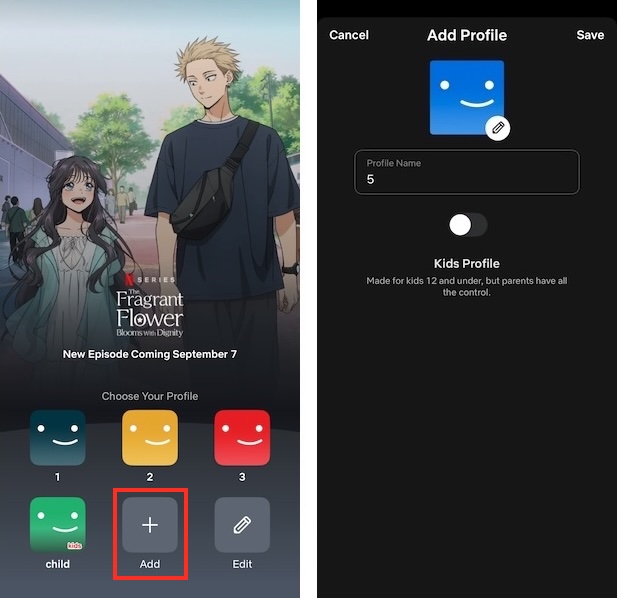
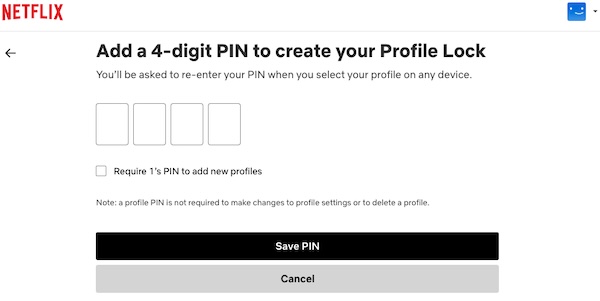
Extram Member allows you to share with someone not living within your household. Here’s how to add Netflix Extra Member to your ad-free subscription.

As mentioned earlier, Netflix limits how many devices can stream at once. If you want to watch Netflix on more devices simultaneously, consider using a smart tool like Pazu Netflix Video Downloader to download videos to MP4. This professional software works on both Mac and Windows. It supports high-quality output up to 1080p and preserves all original subtitles and audio tracks. Once downloaded, you can watch them on any supported device without Netflix limits.

Netflix Video Downloader
Here is how you can download Netflix titles with Pazu Netflix Video Downloader:
Step 1. Download, install, and launch Pazu Netflix Video Downloader on your Mac or Windows. Select Netflix and log in to your Netflix account.
If you have purchased a registration, click the Settings icon > “Register” and enter your registration code to unlock the full version of the downloader. Otherwise, proceed with the free trial version.

Step 2. Click the Settings icon (three lines icon at top right) > “Preferences” to choose download formats, video codec, audio, subtitle languages, and more.

Step 3. Click the Search tab at the top and search for the show or movie you want to download by title or URL.
For a movie, click the Download icon to start the downloading process.

For a show, clicking the Download icon will add all episodes to the download list by default. Uncheck those episodes you don’t want. You can also click the three lines and gear icon to choose audio/subtitle languages for each episode.

After downloading, click the History tab at the top center and then the Folder icon to find downloaded videos. Now you can watch them on any supported device.


Download Netflix movies and TV shows to MP4/MKV on your PC/Mac