
How to download Hulu movies and TV shows on Mac?
Want to download Hulu videos to MP4 on Mac? Here is what you need.

Andrea
- 3 months ago
- Updated
Pazu Hulu Video Downloader is developed to download movies and shows from Hulu to MP4/MKV in 1080p on masOS 10.11 and later. After that, you can transfer and play the downloaded videos anywhere you want.
Features:
- Download Hulu movies and TV shows to MP4/MKV on Mac without Hulu app.
- Download movies and TV shows from hulu.com , hulu.jp and hulu.jp/store .
- Download Hulu movies and TV shows with ad-supported or Hulu (No Ads) plan.
- Download shows and movies from Premium Add-ons and additional on-demand content that comes with a Live TV subscription.
- Watch unlimited downloaded videos on as many devices as you want, including TV, computer, etc.
- Downloads will never expire. No 30 days/48 hours limit. Access downloads whenever you want.
- Access downloads even after cancelling your subscription.
- Watch downloads offline on any device without Hulu app.
- Downloaded videos are not affected if you log out of Hulu.
- Download Hulu videos in 1080p.
- Keep all subtitles and audio languages.
Related: Tutorial of Hulu Video Downloader for Windows.
Step 1. Run Pazu Hulu Video Downloader on your Mac.
Download, install and launch Pazu Hulu Video Downloader on your Mac. Click HULU icon, choose hulu.com or hulu.jp and log in your Hulu account.

Select a profile.

Step 2. Select Hulu movies/TV shows to download.
Browse the built-in web player and find the movie or TV show you want to download.

On the details page, click the green + icon to load the movie or TV show.
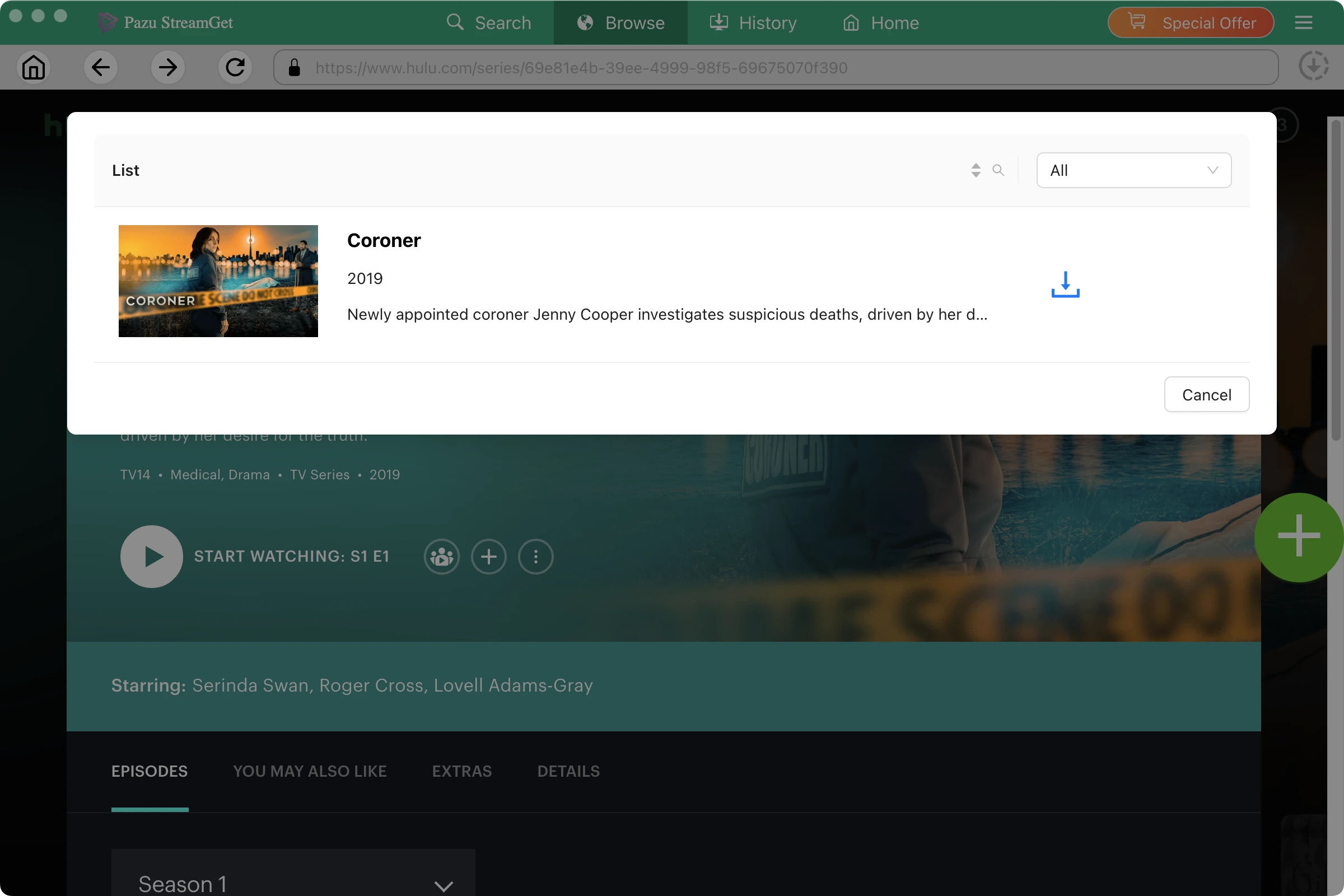
Or enter the movie/TV show title in the search field under Search tab and then click the search icon.

You will get the same results as you search from hulu website or app as Hulu Video Downloader features powerful Hulu search engine. Titles marked "Not avialable in your menbership" comes from ADD-ONs or Live TV which are not included in our plan. If you subscribe to them, the mark will be removed and you can doownload the content.
If you search English content but get Japanese results, that's becasue you selected the wrong Website(Country/Region). Click the Gear icon to open Settings.
Or copy&paste the link of the movie/TV show from Hulu website . Then click the Search icon.

Step 3. Choose video format/quality
Click the 3-lines icon on the top right corner - Preferences to change
- Video format: MP4 or MKV
- Video codec: H264 or H265
- Audio language: English, French, German, Japanese, Spanish, Chinese
- Subtitle language: English, French, German, Japanese, Spanish, Chinese
Subtitle types:
- Hard subtitles: The subtitles are merged into the video and appear with the frames and can't be changed at all.
- Embedded subtitles: You can hide/show, resize the subtitles or switch the subtitle language.
- External subtitles: You will get an external subtitle file in SRT format. If you choose more than one language, there will be more subtitles files.

Step 4. Click Download icon
If your selection is a movie, click
 icon next to it and the downloading begins.
If your selection is a TV show, click
icon next to it to select episodes you want to download.

Before downloading, you can also click
 to choose subtitles and audio tracks.
Click "OK" to close the Audio/Subtitle Windows and then click "Download" to start downloading the episodes you choose.

After conversion, you will find the TV show episodes in MP4 format in the output folder without ads.

Was this article helpful?
93 out of 132 found this helpful