

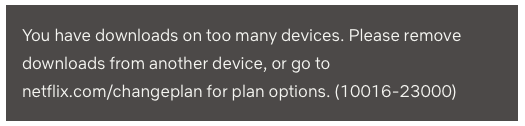
Netflix sets limits on how many devices you can download movies and TV shows on. The amount of devices is determined by your subscription plan: 1 device for Basic plan, 2 devices for Standard plan and Premium plan. Basic with ads plan don’t allow users to download content. So when you are downloading Netflix videos on multiple devices, you will get this error. To fix this, you need to remove downloads from another device or go to netflix.com/changeplan to upgrade your plan.

How to fix this error?
Delete all downloads from one device, connect it to the internet and launch the Netflix app. Then you can download Netflix titles on a new device. If a device has been lost or destroyed, or is otherwise unable to connect to Netflix, the device will automatically expire after 30 days and you will be able to download titles on another device.
How to see which devices have Netflix downloads?
1. Go to https://www.netflix.com and log in your account.
2. From the top right corner click Account.
3. Click below Manage access and devices

4. From the page you can see which devices logged your account.
5 Check the downloads and delete them.

If you want to store downloaded titles on more devices, upgrade your plan to Standard or Premium.
To download Netflix content on more devices, the best option is to download Netflix movies and TV shows to MP4 with Pazu Netflix Video Downloader on your Windows or Mac. By downloading Netflix videos to MP4 and save them on your computer, USB drive, SD card or external hard drive, you can preserve the videos forever and play them anywhere you want without Netflix app. They won’t be expired, removed or disappeared.
Pazu Netflix Video Downloader is a desktop program for Netlfix users to download Netflix videos without Netflix app. It can bypass the DRM from Netflix and download movies and TV shows from Netflix to MP4 and MKV. The converted music can be preserved in high quality as 1080p after a fast download process. Also, subtitles and audio tracks can be kept 100% the same as the original video.

Download Netflix movies & TV shows to MP4 with HD quality.
Select the Netflix icon and log in to your Netflix account. Click the key icon and enter your registration code to unlock the full version if you have purchased a registration. If you haven’t, go ahead with the free trial version.

For movies or shows going to leave Netflix, downloading them with Pazu Netflix Video Downloader can save them to MP4 on your local drive and preserve them forever. Click the Search tab on top and enter the title of a movie/TV show in the search field and click the search icon. You will see all shows in the list.

Click on the Settings button in the upper right corner and select “Preferences” to change:

Click Download icon on the right side.
As you can see from the screenshot, all episodes are checked by default. Netflix Video Downloader will help you download them, no need to tap one by one.

Then click Download button in the right bottom corner. The downloading begins.

After downloading, click History and find the video in MP4 format. You can now transfer the downloaded videos to USB drive. Insert the USB drive to your TV’s USB port and watch them whenever you want.
Related articles

Download Netflix movies and TV shows to MP4/MKV on your PC/Mac