

Netflix has essentially become the new TV for many. While fewer people are tuning in to evening news and scheduled shows, more are choosing Netflix for their evening relaxation and favorite show fix.
Typically you’d watch Netflix by streaming, which is fine if you have an internet connection. However, if you’re away from home or in a place in your home where the WiFi isn’t very good, then streaming isn’t a great option. Another popular Netflix scenario is while traveling. Whether on a long plane ride or waiting for transportation, people turn to Netflix to make the time pass more smoothly by catching up on shows they’ve been wanting to watch. The catch is that many travel situations don’t offer strong WiFi, or any at all. This means you need to download Netflix content to your devices beforehand.
The good news is you can download Netflix shows and movies, but there are important things to know before you do.
To download movies on Netflix, you will need a compatible device, such as:
and an active Netflix account:
If you subscribed to the Basic plan($9.99/month) in the past, you can also download Netflix movies.

Note: To download Netflix episodes for your favorite show, you can take advantage of Smart Downloads, which means that if you only need to download the first episode. After you watch it, Netflix will automatically delete it and download another one once you have access to WiFi.


To download Netflix movies and TV shows on Windows PC, make sure your PC is running Windows 10 (version 1709 or newer) or Windows 11.
 and set Video Quality.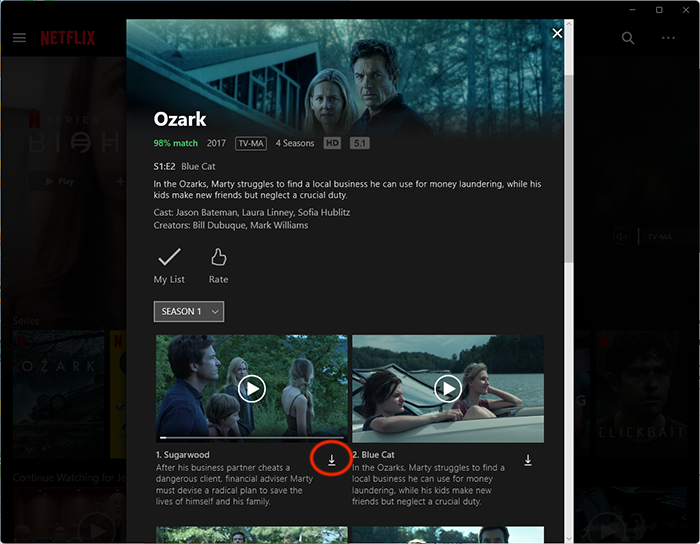
Netflix offers two quality levels for downloads. Standard and Premium. The latter appears to be high definition – somewhere between 720p and 1080p resolution – although Netflix doesn’t specify. Standard” uses less space on your device and allows you to download content more quickly, while “High” requires more space and time. Which one you want depends on how much space you have available and what kind of device you’re using. For example, the look of standard mode may look good on your new phone, while a higher resolution may be better suited for your tablet or laptop.
To find the downloaded files in File Explorer, check Where Netflix Downloads Are Stored on Windows.
Can you download Netflix movies on a Mac? Technically, no. There’s no official Netflix app for Mac, and the Netflix website doesn’t support downloading functionality. Luckily, there are other ways to watch Netflix offline and go around the restrictions.
Pazu Netflix Video Downloader is the best Netflix Video Downloader, which is designed for downloading and converting Netflix movies and TV shows to MP4 and MKV without the Netflix app. You will like the lossless output quality of Netflix videos, which is up to 1080P, so that you can enjoy most on any device. Also, subtitles and audio tracks can be kept 100% the same as the original video. The downloading is fast and stable.
With Pazu Netflix Video Downloader, subscribers can also download movies and TV shows on Mac and Windows. Here are the advantages of the Pazu Netflix Video Downloader that you should check out.
1. Surpass the storage: If you have limited storage in your device, you can directly change the download location and get it on your external memory.
2. No buffering: The Pazu Netflix Video Downloader downloads your content, which means you don’t need to keep your connection in check. Even if the connection gets unstable, you don’t need to worry about it, as your content is already downloaded.
3. Access for a lifetime: Once you have downloaded your favorite show, you need not search for it again because you can store it on your device for as long as you want. No need to worry, it will expire as Netflix downloads.

Download Netflix movies & TV shows to MP4 with HD quality.
How to download through Pazu Netflix Video Converter?
Here are the steps through which you can download any of your content through the Pazu Netflix Video Converter.
Download, install and run the Pazu Netflix downloader on your system so that you can download Netflix videos to MP4 in 1080p. At first, you need to select Netflix and log in to your Netflix.

After signing in to your Netflix account through the Pazu Netflix Video Downloader, click the Search tab on top and search for the show or series you want to watch.

Click the Settings icon in the top right corner and select “Preferences.” You will get a variety of video formats and settings to choose from. You can choose any of them depending upon the size of the file, language preference, etc.

After setting the preferences, click on the Download icon and wait for the download to complete.
As you can see from the screenshot, all episodes are checked by default. Netflix Video Downloader will help you download them, no need to tap one by one.

Then click Download button in the bottom right corner. The downloading begins.

After you are done with the downloads, click on History and you will find all the videos there.
So these are the steps by which you can download any of the Netflix content on your device.
Enjoy your favorite video content and chill!
Related articles

Download Netflix movies and TV shows to MP4/MKV on your PC/Mac