

Are you interested in streaming Netflix in stunning 4K quality? There’s an abundance of Ultra HD content available, including popular shows like Stranger Things, Black Mirror, Ozark, and many others. However, before diving in, it’s important to ensure you have the necessary equipment, a suitable Netflix account, and a reliable internet connection.
Contents
4K refers to the resolution of the video. It’s an ultra-high-resolution standard that has four times as many pixels as Full HD video (also known as 1080p). Or to put it more simply: It’s really, really sharp.
It’s important to note that the terms 4K and UHD both refer to resolution and are essentially the same thing.
Full HD = 1080p = 1920×1080 pixels
A 1080p resolution means the image has 1920 pixels horizontally by 1080 vertically (1920×1080). You can find the total pixels in the image by multiplying those two numbers (the height and width) together, meaning a 1080p image has more than 2 million pixels.
4K=Ultra HD=UHD=3840×2160 pixels
By contrast, 4K has a resolution of 3840×2160. That’s a lot more pixels in the overall image, totaling over 8 million pixels. As always, the higher the resolution, the sharper the picture will be.
4K (Ultra HD) is a high-density pixel resolution that provides greater detail in video images. HDR10 and Dolby Vision are color and dynamic range enhancements that provide a more realistic representation of content. Many devices that support HDR10 or Dolby Vision also support 4K.
To watch Netflix in 4K UHD, you need:
You can also watch Netflix 4K Ultra HD on Windows and Mac computers. However, Android and iOS devices only support playback up to 1080p Full HD.
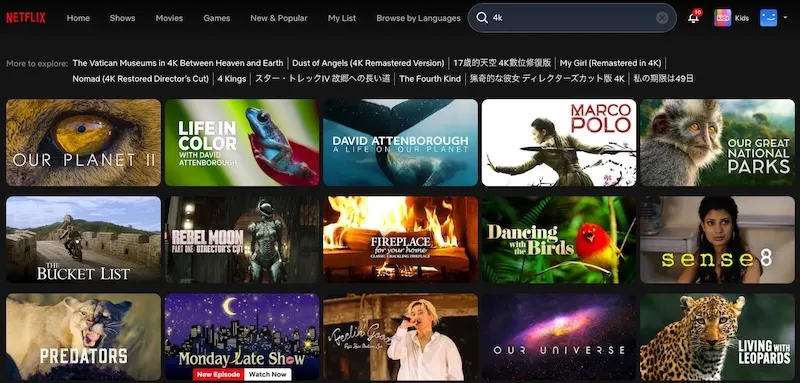
Not all Netflix content is available in 4K. To see whether a TV show or movie is in Ultra HD, check for the 4K or Ultra HD label next to the show or movie description. You can also find 4K titles on Netflix by searching for “4K” or “UltraHD.”
To watch Netflix content in 4K Ultra HD, you must subscribe to the Premium plan. Besides streaming in Ultra HD, it offers other benefits. For instance, you get to watch Netflix shows on four devices simultaneously.
Ultra HD 4K is exclusive to Premium, while Standard and Standard With Ads are limited to Full HD 1080p.
| Plan | Price | Numbers of screens at once | Resolution |
| Standard with ads | $8.99 / month | 2 | Full HD(1080p) |
| Standard | $19.99 / month | 2 | Full HD(1080p) |
| Premium | $26.99 / month | 4 | Ultra HD (4K ) |
If you aren’t sure which plan you’re currently using, you can check it in your account settings. Follow the steps below to check and upgrade your Netflix plan.
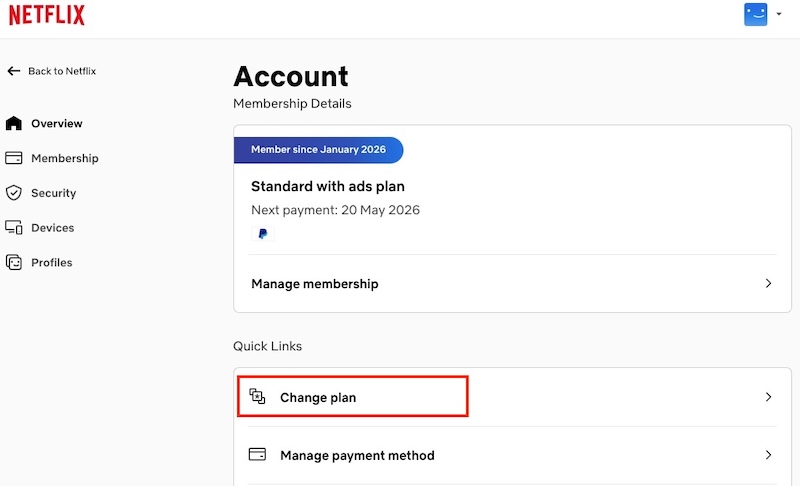
The fundamental requirement to stream Netflix in UHD on TV is a 4K TV or monitor. Remember to check that your screen has a 60 Hz refresh rate to avoid lagging; the higher, the better. If you’re watching Netflix with a streaming device (like a Fire TV Stick, Roku, or Apple TV), both the device and the TV must support 4K resolution and HDCP 2.2.
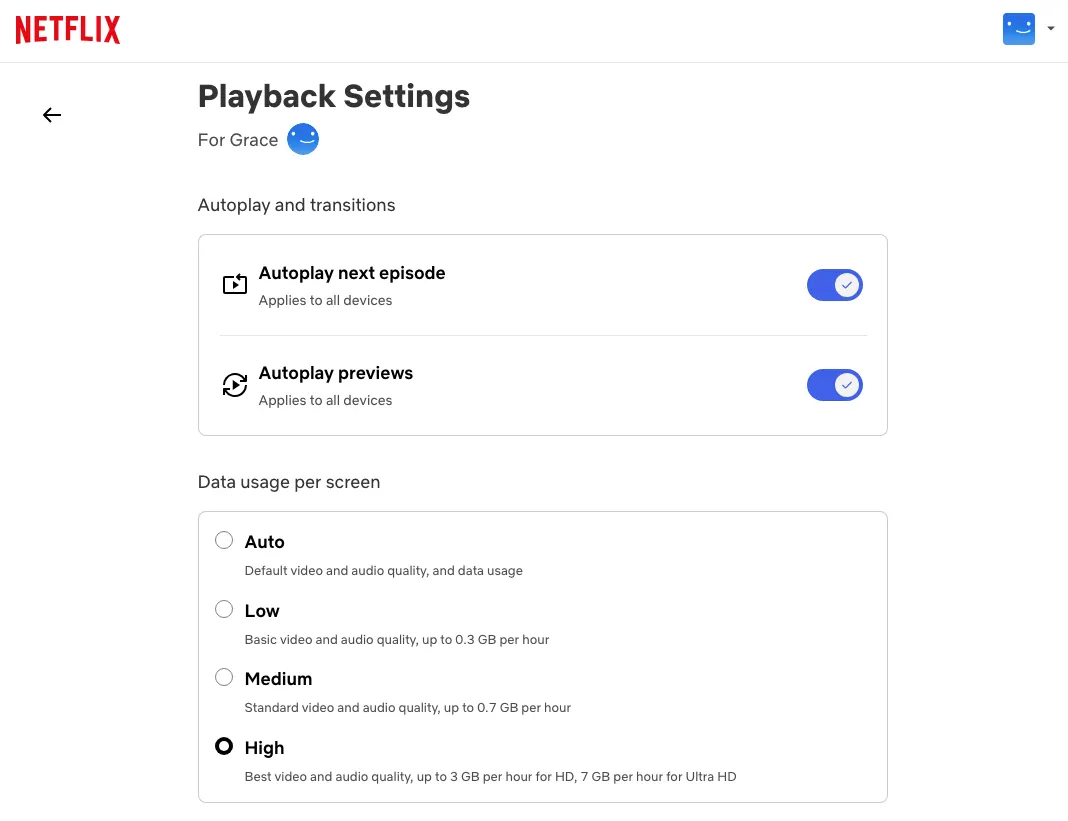
Once hardware compatibility is confirmed, ensure you have a Netflix Premium plan, a reliable internet speed of 15 Mbps or higher, and that your account’s playback quality is set to Auto or High.
To watch Netflix in 4K on a Windows PC, you will need:
On Windows, the browsers that support Netflix 4K playback are Microsoft Edge and Google Chrome. Netflix limits playback to 1080p on Firefox, Opera, and most other popular browsers. Alternatively, you can use the Netflix app, which you can install from the Microsoft Store.
Windows browsers and the Netflix app for Windows support streaming in the following resolutions:

To watch Netflix 4K content on a Mac, you will need:
Pazu Netflix Video Downloader is the best downloader to convert Netflix movies and TV shows to MP4 and MKV without the Netflix app. You will like the lossless output quality of Netflix videos up to 1080p, and you can enjoy downloaded files on any device. Additionally, it preserves 100% of the original audio tracks and multi-language subtitles while ensuring fast, stable downloads.

Download Netflix movies & TV shows to MP4 with HD quality.
Here are the steps to download any of your content using the Pazu Netflix Video Converter.
Download, install, and run the Pazu Netflix downloader on your Mac or Windows. Select Netflix and log in to your Netflix account.

Click the Settings icon in the top right corner and select “Preferences.” You can customize download settings, including:

Click the Search tab at the top and search for the show or series you want to download.

Click on the Download icon next to the movie or TV show.
For shows, all episodes are checked by default. Uncheck episodes you don’t want to download and click the Download button.

The Downloader will download the show in bulk; no need to tap the episodes one by one.
After you are done downloading, click the History tab to see all the downloaded videos. You can directly locate the downloaded files by clicking the file icon.

Related articles

Download Netflix movies and TV shows to MP4/MKV on your PC/Mac