

Plex is free and easy-to-use software that allows you to organize, beautify, stream, and share your personal collection of movies, TV, music, and photos across all your devices. Plex magically scans and organizes your files, automatically categorizing your media beautifully and intuitively in your Plex library.
Once installed on a computer, Mac, or NAS drive, Plex scans your files and automatically fetches high-resolution posters, ratings, cast lists, and episode details to turn your media into a private, Netflix-style library.
While Plex doesn’t stream Netflix content directly in its player due to copyright protections, you can use Plex Discover to link your Netflix account, search for titles, and keep a unified watchlist across platforms. You can also download Netflix to MP4 files and upload them to Plex. Then you can access the videos across your connected devices.
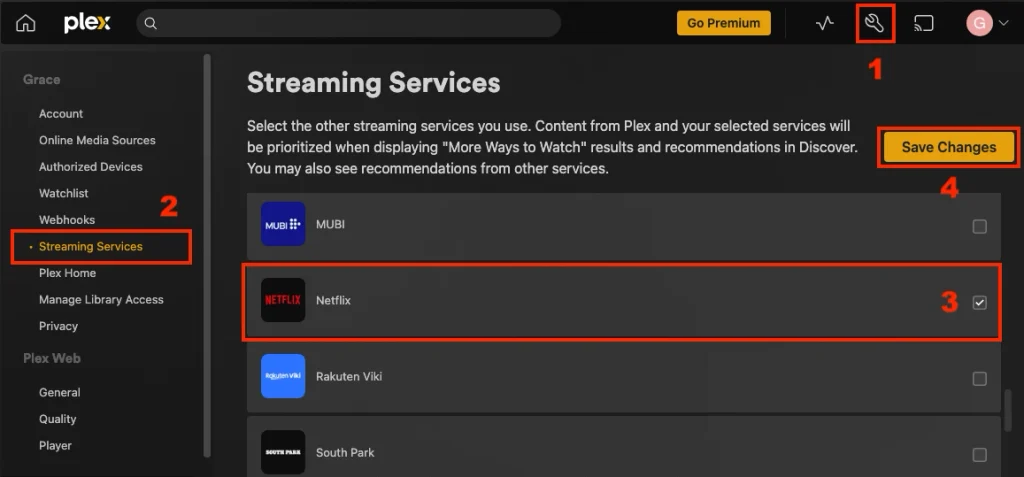
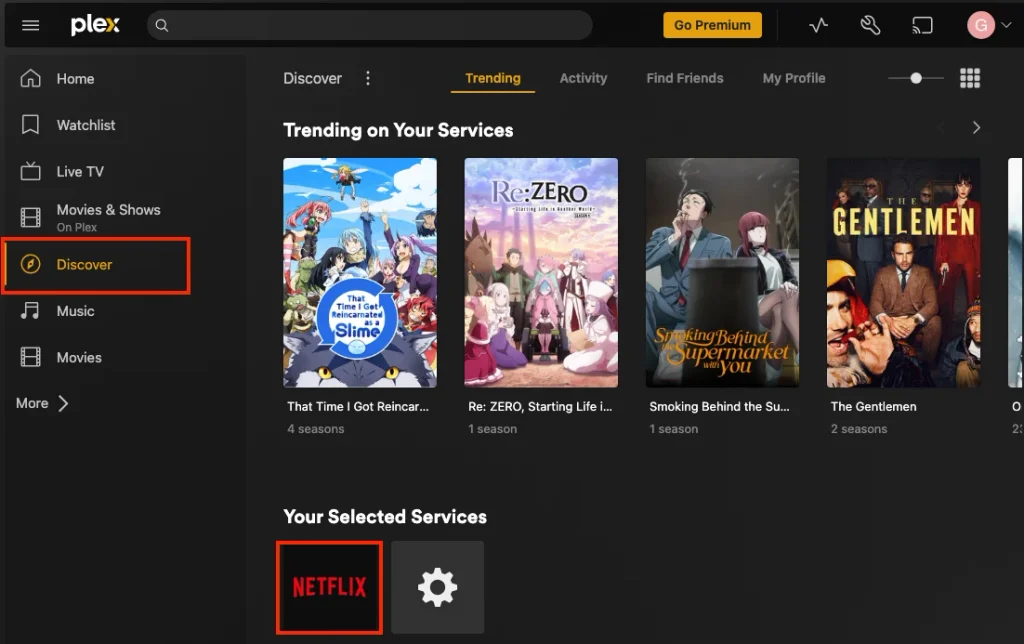
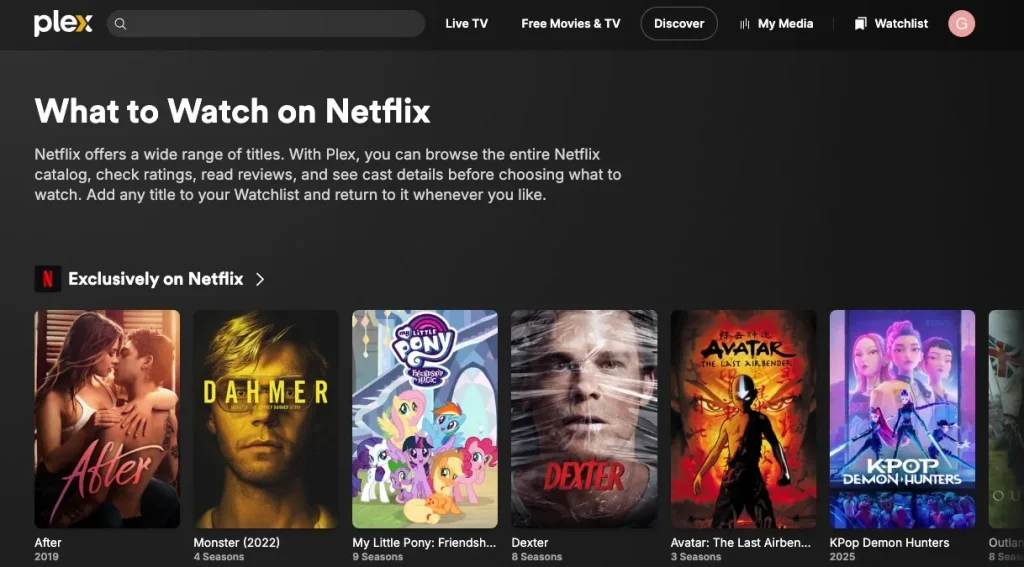
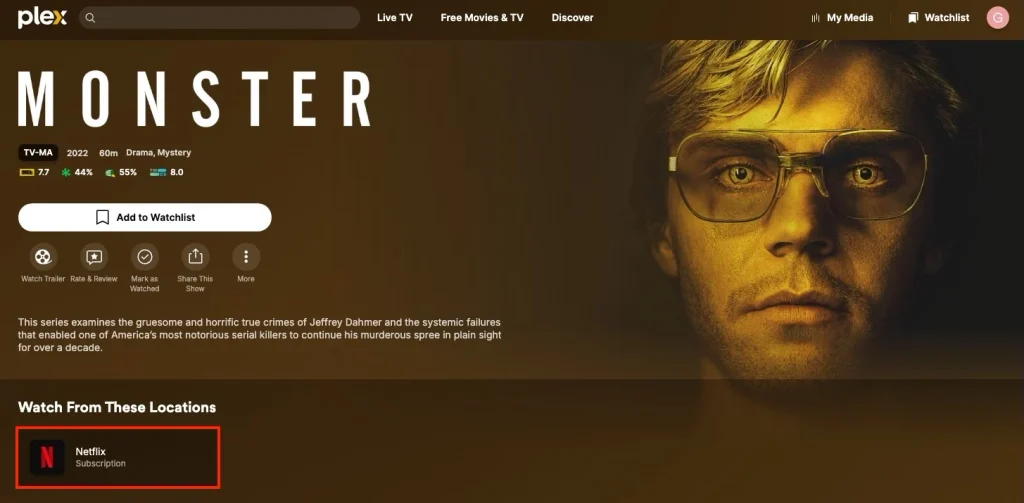
While Plex doesn’t support directly playing Netflix videos anymore, you can link your Netflix account to Plex and use the Plex Discover feature to browse Netflix’s library. When you select a movie or show on Netflix in Plex, Plex opens the Netflix web player so you can play it.
Here’s how you can add Netflix to Plex:
Netflix movies and TV shows you downloaded from the app can’t be added to Plex since they are only for offline playback within the Netflix app. To add Netflix videos to Plex, you need to download them to Plex supported formats, such as MP4. All you need is Pazu Netflix Video Downloader.

Download Netflix movies & TV shows to MP4 in HD quality.
Follow the steps below to download Netflix videos to MP4 and add them to Plex.
Download, install, and run Pazu Netflix Video Downloader on your Mac or Windows. Click NETFLIX and log in to your Netflix account.
Click the three-line icon > Register and enter your registration code to unlock the full version if you purchased a registration. If you haven’t, go ahead with the free trial version.
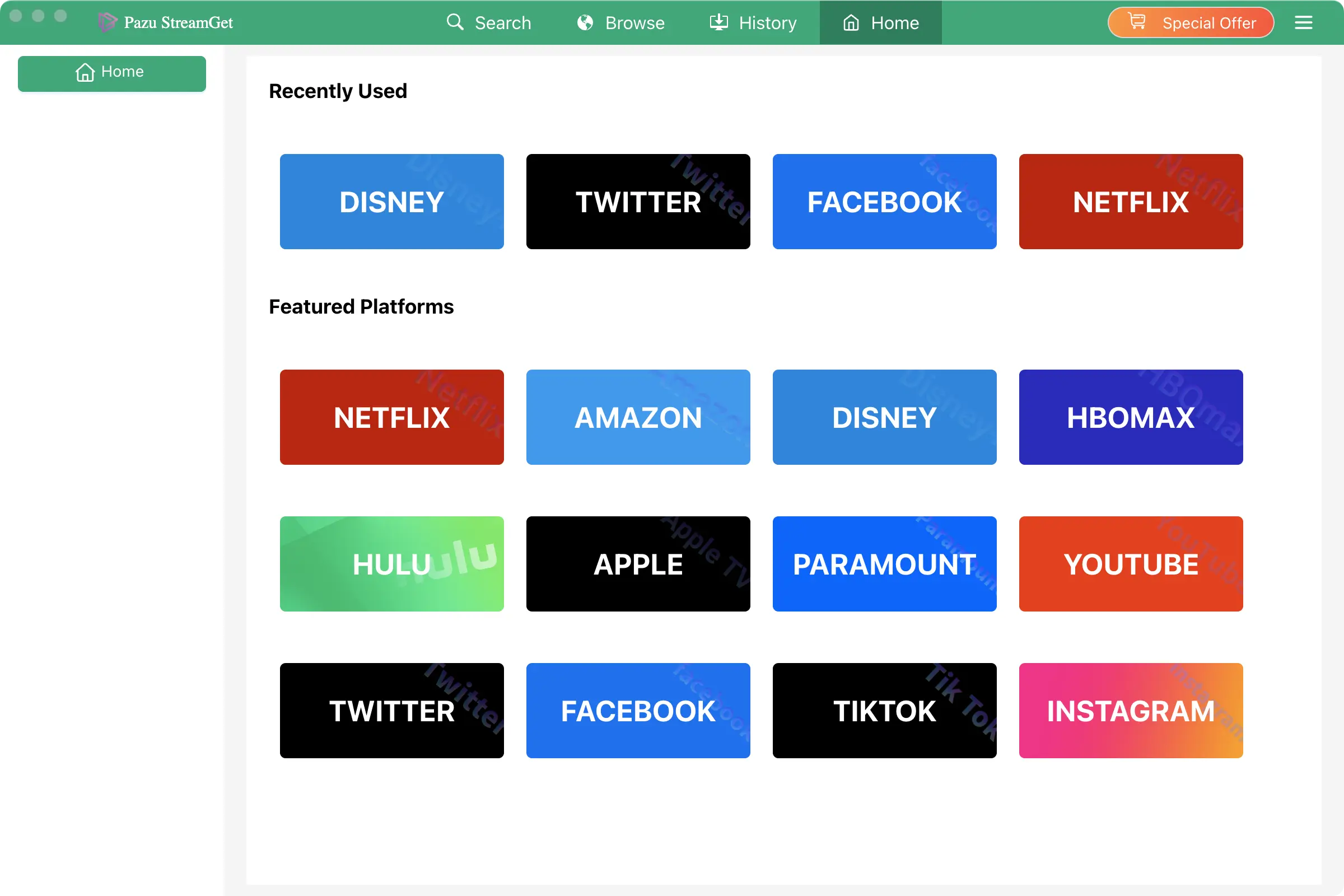
Click the three-line icon > Preferences to change the output format, audio quality, languages, and more.

Click the search tab and search for the movies and TV shows you want to download by name or title.

Click the Download icon on the right side. For movies, the download starts immediately.
For TV shows, the pop-up window displays all seasons and episodes. Select the season and episode you want to download.

Then click the Download button in the bottom-right corner. The download begins.

After downloading, click History > the File icon to find the video in MP4 format. You can now upload it to Plex or transfer and play it anywhere you want.

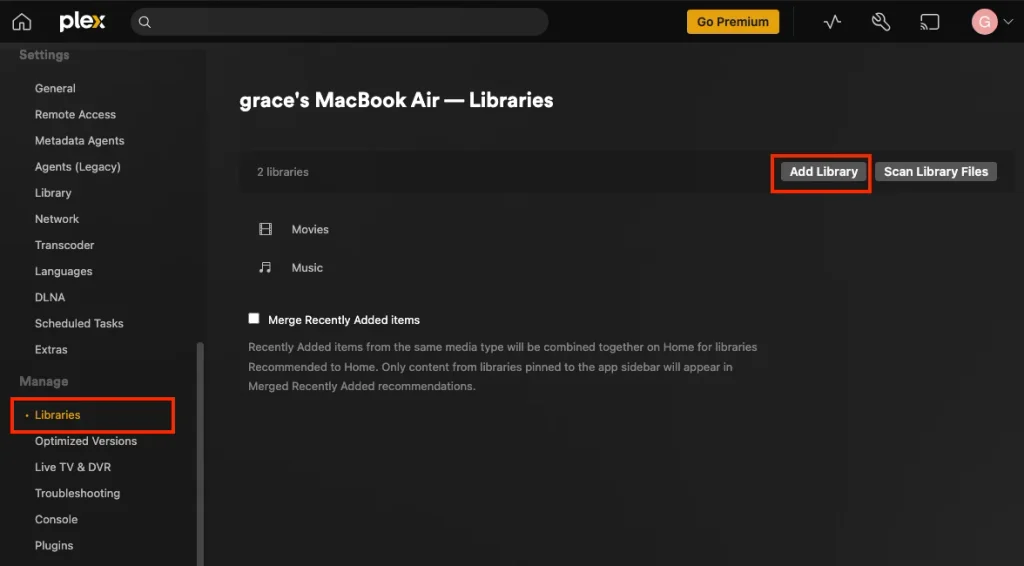
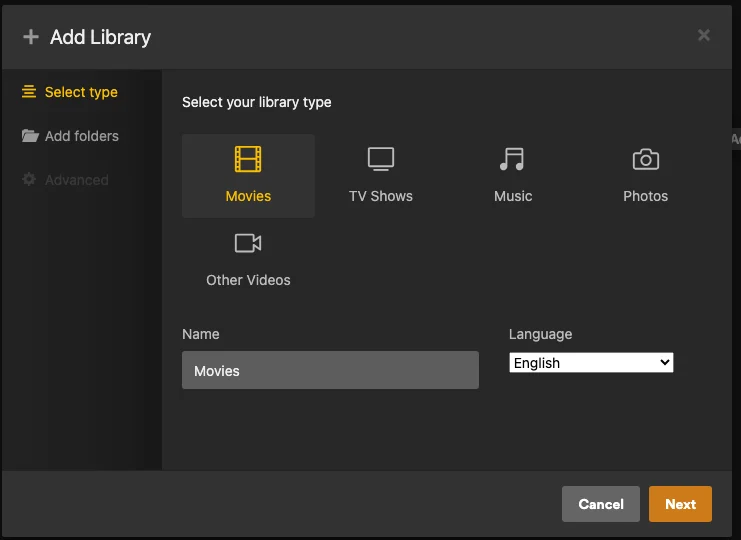
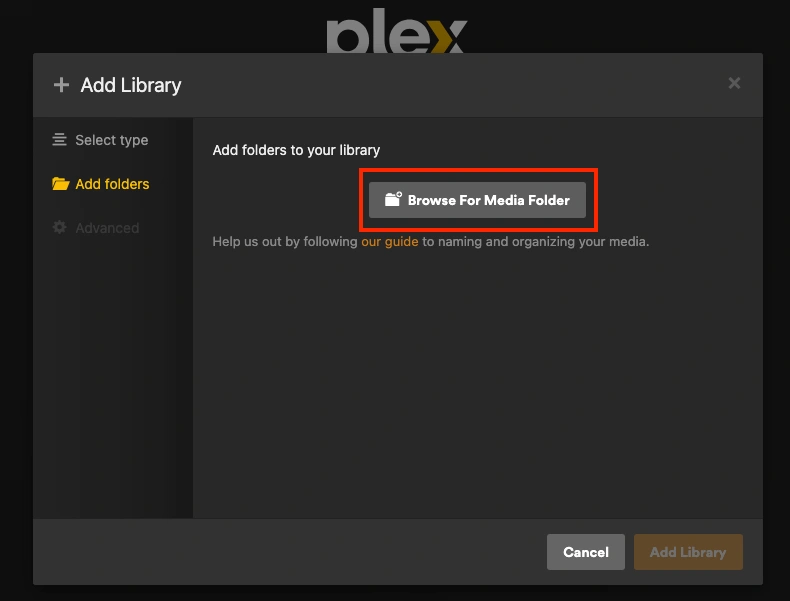
Ensure your files follow Plex’s official naming rules so metadata is fetched accurately:

Download Netflix movies and TV shows to MP4/MKV on your PC/Mac