

With the rise of high-speed internet and modern devices, 4K streaming has become increasingly popular, allowing users to enjoy a theater-like experience in their own living rooms. As part of a high-quality streaming strategy, Amazon Prime Video offers a vast, growing library in 4K Ultra HD, from award-winning original series to a broad selection of movies and TV shows. If you’re looking to maximize your streaming setup, this guide will show you how to watch 4K movies on Prime Video and unlock a fantastic home viewing experience.
Due to its vastly higher resolution, 4K offers a significantly enhanced viewing experience compared to 1080p HD, providing more lifelike images with richer details and vibrant colors.
The primary difference between 4K and 1080p is resolution—the number of pixels that make up the image. 4K has approximately four times the pixels of 1080p:
This higher pixel count contributes to significantly sharper images, allowing you to see much finer details, textures, and lines in 4K, especially on larger screens.
Many 4K displays and content support High Dynamic Range (HDR), which offers a wider spectrum of colors, brighter highlights, and deeper blacks compared to the Standard Dynamic Range (SDR) used in most 1080p content. This results in more vibrant and lifelike colors.
The greater detail and improved color range of 4K contribute to a more realistic viewing experience. Images appear more three-dimensional and immersive.

While Prime Video offers an extensive selection, not all titles are available in 4K Ultra HD. To enjoy the highest quality, ensure the specific title supports it, and you have a compatible 4K device and sufficient internet speed.
To successfully stream 4K content on Prime Video, you’ll need the following:
While Prime Video offers some free 4K titles, an Amazon Prime membership is recommended for full access to its extensive 4K library. Prime Video is included with Prime at no additional cost.
To stream Ultra HD content on Prime Video, you need a 4K-compatible device. This includes 4K smart TVs, streaming devices, or game consoles connected to a 4K display (TV or monitor), and select Android devices that support 4K playback.
Here’s a breakdown of supported device categories:
Important Note: While some iPhones, iPads, and Windows/Mac computers have 4K displays, Prime Video does not currently support 4K streaming on these devices.
4K streaming requires significantly more bandwidth. Amazon recommends a minimum download speed of 15 Mbps, but for optimal performance, especially with multiple devices on your network, aim for 25 Mbps or higher. 50 Mbps or more is ideal for a truly smooth experience. A wired Ethernet connection and a good router can further improve streaming quality.
There are several websites and apps that can help you check your internet speed. A popular option is https://fast.com/. Simply visit the website and run the speed test.
Prime Video offers different options for your streaming and downloading quality including “Best”, “Better”, “Good”, and “Data Saver”(for mobile devices). To get 4K quality on qualified device, make sure to set the quality settings to “Best.” On mobile devices, you’ll also need to enable “Use highest quality on Wi-Fi.” Here’s how.
On the Prime Video App
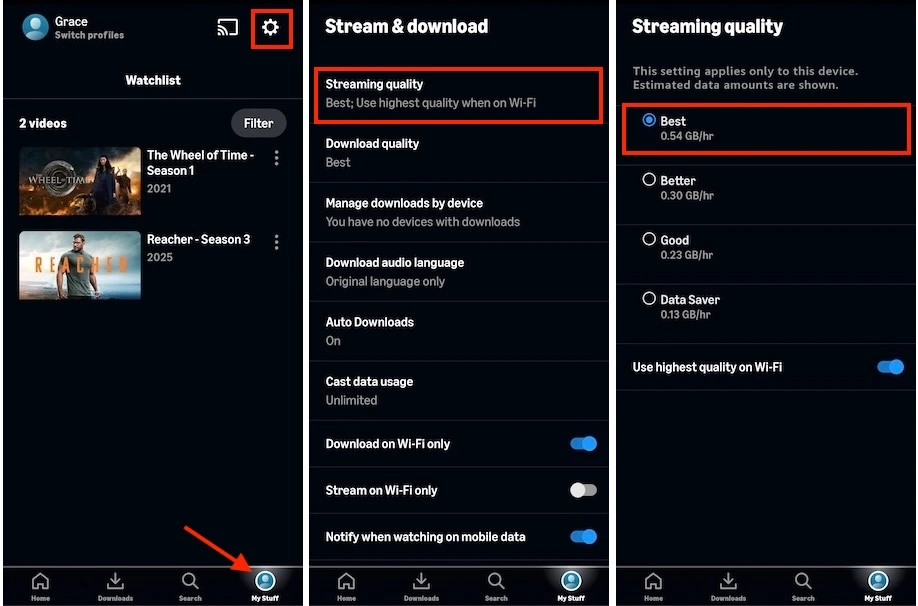
On Web Player

Here are some ways to find 4K Ultra HD movies and shows on Prime Video.
Launch the Prime Video app on your 4K-enabled device and look for rows labeled “4K Ultra HD” or “4K UHD.” If you don’t see them, try navigating to the “Movies” or “TV Shows” sections and scrolling down. The 4K UHD category should appear after a short refresh.

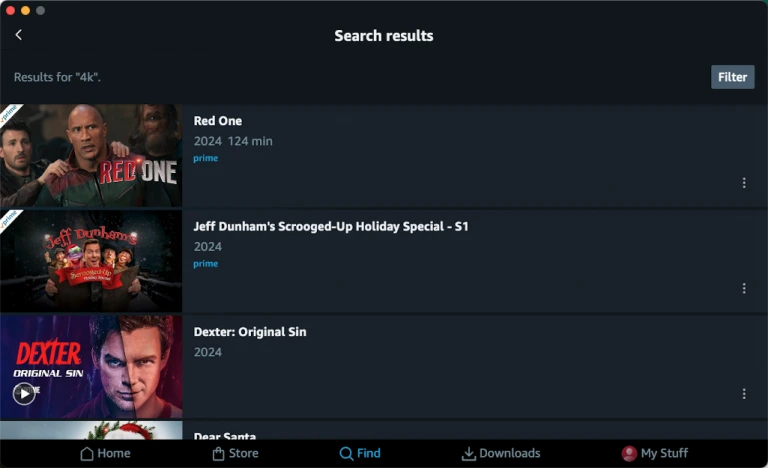
You can directly search for 4K content by entering “4K” in the search bar within the Prime Video app. This will generate a list of available 4K titles. You can then use the available filters to narrow down your search further.
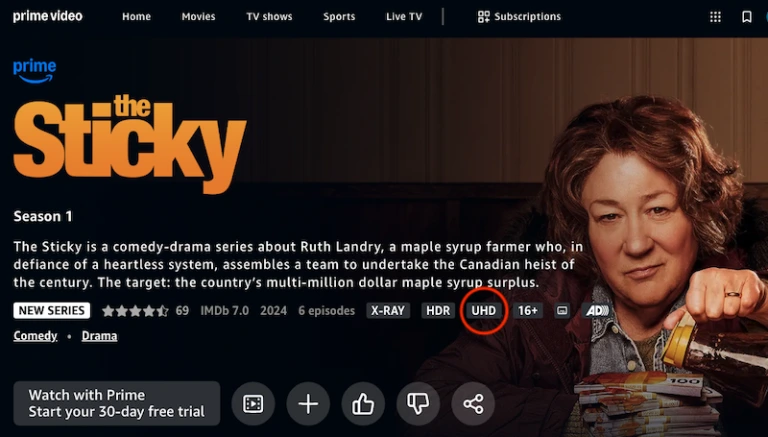
If you have a specific movie or show in mind, visit its details page. If the title is available in 4K, you’ll see a “UHD” or “4K UHD” label displayed.
Prime Video presents a diverse and noteworthy catalog of 4K movies. You can start with these popular choices:
While watching a video, Prime Video provides information about the current playback resolution. Typically located at the bottom left of the screen, the status bar will show whether the video is playing in HD or UHD. If your internet connection is unstable, it may take a moment for the resolution to reach UHD.

Amazon Prime Video allows subscribers to download content for offline viewing on phones, tablets, and computers. However, 4K titles are only available for download in up to 1080p resolution. Downloaded files are tied to the device they were downloaded on and can only be accessed through the Prime Video app.
For greater flexibility and to watch your Prime Video downloads on any device, consider using a smart tool like Pazu Amazon Prime Video Downloader. It can download Prime Video content, including free titles, as MP4 or MKV files in up to 1080p. Once downloaded, you can freely transfer these files to any compatible device for offline viewing. Pazu Amazon Prime Video Downloader provides an exceptional offline entertainment experience, allowing you to fully enjoy your Prime Video titles your way.
To get started, download, install and run the Pazu Amazon Video Downloader app on your Mac/Windows. Select AMAZON and sign in with your Amazon account.

Click the Settings icon > “Register” and enter your registration code to unlock the full version if you have purchased a registration. If you haven’t, go ahead with the free trial version.
Select the Search tab at the top and enter the name or copy-paste the link of the TV show or movie. Click the Search icon to find the TV show or movie you want to download.

Before downloading, you can choose the video output setting. Tap the Settings icon from the upper right and select “Preferences” to set video formats, video codecs, audio languages, subtitle languages, and more.

Tap the download icon next to the title you want to download.
For a movie, click the Download icon next to it and the downloading begins.
For a TV show, click the Download icon to select the episodes you want to download.

Before downloading, you can also click  to choose subtitles and audio tracks for each episode. Audio and subtitle languages in Settings only show the 6 common languages. Here you can choose any language from whatever the movie or TV show provides.
Then click Download.

Once downloaded, click the History icon at the top. Use the Folder icon to find the downloaded files. Now you can watch the downloaded Prime Video videos offline anywhere you want.

Related articles

Download Amazon Prime Video movies and TV shows to MP4/MKV on your PC/Mac