

Prime Video, included with an Amazon Prime membership, offers a vast library of movies, TV shows, and original content. But can you share the viewing experience with others? The answer is yes. There are two ways to do it, each with its own benefits and limitations. This article shows how to share Prime Video and explains the differences between the available methods.
Contents
Yes, Prime Video is shareable. There are two main ways to share: through Prime Video profiles within a single account and through the Amazon Household feature. Profiles share the same login credentials, while Amazon Household links separate Amazon accounts and shares Prime benefits, including Prime Video access, often with a shared payment method.
While multiple people can access Prime Video through profiles or Amazon Household, there are limits on simultaneous streaming. Generally, you can stream up to three devices for different titles at the same time, but two for the same titles.
Amazon does not explicitly state that the two adults must live at the same address. Many users report successfully sharing Amazon Household benefits with adults who live at different addresses, such as family members or close friends. The main requirement seems to be the willingness to share payment methods linked to the Amazon accounts. This implies a level of trust and responsibility between the adults in the Household.
The simplest way to share Prime Video is by creating multiple user profiles within a single Amazon account. You can create up to six Prime Video profiles: your primary profile plus up to five additional profiles for adults or children. This is ideal for family members in the same household who share the same Amazon account.

You can make the most of your Prime membership by sharing it with your family using Amazon Household. Amazon Household is a feature that allows two adults (each with their own Amazon account), and up to four teens (13-17 years old, with their own login) or children (12 and under, using managed profiles) to link together and share select Amazon benefits like Prime Video, Prime Shipping, Prime Reading, Family Library, and more. Only one Prime membership is required for the Amazon Household.
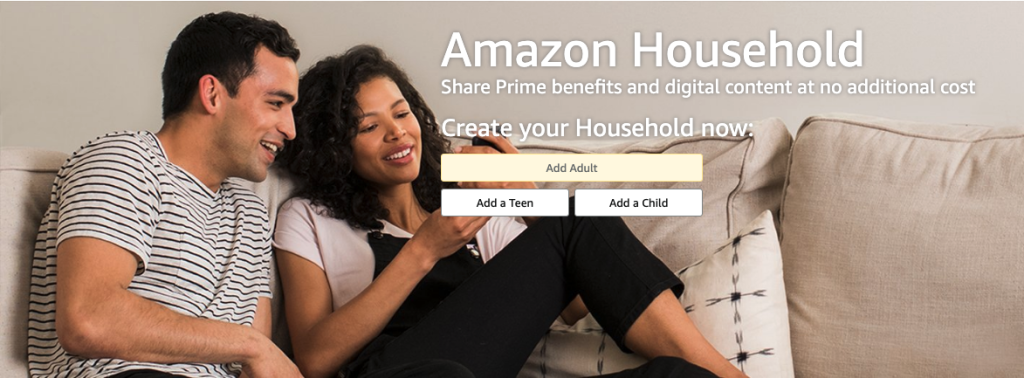

The main difference between sharing with Prime Video Profiles and sharing with Amazon Household comes down to how many Amazon accounts are involved:
Here’s a quick comparison to help you decide which method is right for you:
| Feature | Prime Video Profiles | Amazon Household |
| Accounts | One Amazon account | Two separate adult Amazon accounts |
| Members | Up to 6 profiles (adult or child) | 2 adults, up to 4 teens/children |
| Logins | Same login for all profiles | Separate logins for adult and teen accounts |
| Payment Sharing | Same payment method for all profiles | Shared payment methods |
Prime Video allows you to download Prime titles on up to two devices, purchase titles on up to four devices, and rent titles on one device. Free with ads content cannot be downloaded. However, for better offline viewing experiences, the recommended solution is Pazu Amazon Prime Video Downloader. This specialized software can download Prime Video movies and TV shows, including free titles (Freevee content), in MP4 or MKV format. Once downloaded, you can transfer these files to any compatible device for viewing, even after your Prime membership ends. Pazu Amazon Prime Video Downloader supports both Mac and Windows operating systems and provides downloads in 1080p quality for a high-definition offline experience.
To get started, download, install and run the Pazu Amazon Video Downloader app on your Mac/Windows. Select AMAZON and sign in with your Amazon account.
If you’ve purchased a registration code, click the Settings icon > “Register” and enter it to unlock the full version. Otherwise, proceed with the free trial.

Before downloading, click the Settings icon (three-line icon at the upper right) > “Preferences” to customize video formats (MP4, MKV), video codecs, audio languages, subtitle languages, and more.

Enter the name or paste the link of the movie or TV show you want to download under the Search tab. Click the Search icon.

Click the Download icon next to the title you want to download.
Before downloading, you can also click  to choose subtitles and audio tracks for each episode. Audio and subtitle languages in Settings only show the 6 common languages. Here you can select from all available languages offered by the specific movie or TV show.

Once your downloads are complete, click the History icon at the top. Select the Folder icon to find the downloaded files on your computer.

Now you can locate the downloaded Prime Video videos and watch them offline anywhere you want.
Related articles

Download Amazon Prime Video movies and TV shows to MP4/MKV on your PC/Mac