

You can watch Hulu on most smart TVs and enjoy all of your favorite shows. Hulu is a great app that allows you to watch content anytime, anywhere. It works great on smart TVs and will enable you to watch your shows and get the best experience on a bigger screen.
Watching Hulu on your smart TV doesn’t require a lot. In fact, it’s pretty simple. All you have to do is install the app and keep up with regular updates. After this, you are free to enjoy the entertainment experience on your TV with the best picture quality. In this article, we’ll teach you how to get Hulu up and running.
If you have an older TV, using a Firestick, Apple TV, Chromecast or FireCube TV will allow you to get the Hulu app!
If you are on the kid profile, click profile icon on the top right corner – Profiles – choose your profile and and them follow above steps to log out.

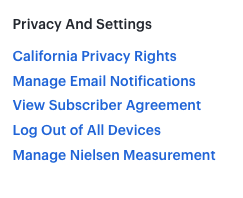
If you suspect that an unauthorized individual is accessing your account, it’s crucial to take immediate action to secure your sensitive information. Hulu can help you with that! By logging you out of all devices connected to your account, you can ensure that any unauthorized users are no longer able to access your account or view your personal information.
To further protect your account, password is needed to log back in on these devices, giving you complete control over who has access to your account.
If Hulu is not working on your Smart TV, or frozen, unresponsive, shows black screen, doesn’t load or has some kind of error message or errror code, there’s no need to panic. Follow below options to have a working Hulu.
One common troubleshooting solution is to hold down the power button on your remote for an extended period of time. This simple action can often resolve many issues and get you back to streaming your favorite shows and movies in no time.
If you’re experiencing issues with your TV, one effective troubleshooting method is to unplug it from the wall and wait for 60 seconds before plugging it back in. This simple action can often reset the TV’s system and resolve any technical glitches or errors that may be causing the problem.
When you unplug your TV, make sure to wait for a full minute before plugging it back in. This allows enough time for any residual power in the system to dissipate, ensuring a full reset when you plug it back in. After plugging your TV back in, turn it on and see if the issue has been resolved.
Unplug your router from the power source and wait for 60 seconds before plugging it back in. This simple action can often resolve any technical glitches or errors that may be affecting your internet connection.
To do this, locate your router and unplug it from the power source. Wait for a full minute before plugging it back in, which allows time for any residual power to dissipate and ensures a full reset when you plug it back in.
After plugging your router back in, wait a few minutes for it to fully reboot and reconnect to the internet. Then, try accessing the internet again to see if the issue has been resolved.
In addition to above quick fixes, there are a few other steps you can take to troubleshoot your Hulu TV experience. First, make sure that your internet connection is strong and stable. A weak or unstable connection can cause buffering and other streaming issues that may impact your viewing experience.
Follow above instructions to log out of Hulu on any devices and log back in. Once you’ve logged back in, try streaming a show or movie to see if the issue has been resolved.
If Hulu keeps freezing still, clearing cache data on your device or browser is another way Hulu users can fix Hulu freezing problems. When Hulu uses too much memory, it starts to lag or freeze while streaming the video, making your stream break up and start buffering. If you clear the cache, you will remove site data from your browser and hopefully solve any buffering-related issues.
Android TV
Fire TV and Fire TV Stick
Go to Settings > Applications > Manage Installed Applications > Hulu. Then, select both Clear Cache and Clear Data.
If there are no steps to clearing cache and data on your device, just Uninstall or reinstall the Hulu app.
Learn how to clear Hulu cache and data on more devices.
Depending on your device, you can uninstall and reinstall the Hulu app to solve some streaming issues. It’s also a great way to ensure that you have the latest version of our app on your device.
LG TV
Apple TV (4th generation or later)
Fire TV and Fire TV Stick
There are dozens of different Hulu error codes and Hulu error messages aren’t always crystal clear in terms of explaining the problem. Some Hulu error codes indicate a problem with your device, others are caused by poor internet connections, and some are the result of hardware issues. If you received a Hulu error code when trying to stream, check for information about that specific code. You can still use these general troubleshooting tips, but you may find more specific information if you have an error code.
You can only stream Hulu content on TV and there is no download option on TV. Hulu did not offer a way to download and watch content offline on TV devices. However, you can download and watch Hulu content offline on TV by downloading movies and TV shows to MP4 and then watch them on TV offline from USB drive.
Pazu Hulu Video Downloader is a master video downloader that can download any Hulu movies and TV shows in MP4 or MKV format. Pazu Hulu Video Downloader can easily download Hulu videos on the computer in high quality with multiple languages of audio tracks and subtitles kept. Plus it doesn’t require you to have a Hulu No Ads plan. Pazu Hulu Video Downloader supports downloading ad-free videos for all types of Hulu subscribers. Now we will show you how to use Pazu Hulu Video Downloader to download Hulu movies and TV shows to play them without streaming problems.
Download, install and launch Pazu Hulu Video Downloader on your Mac or Windows. Click the HULU icon, choose hulu.com or hulu.jp, and log in to your Hulu account.

Select a profile.

Enter the movie/TV show title in the search field under the Search tab.

Or copy&paste the link of the movie/TV show from Hulu website. Then click the Search icon.

Click the 3-lines icon on the top right corner – Preferences to change:
Subtitle types:

If your selection is a movie, click the download icon next to it and the download begins.
If your selection is a TV show, click the Download icon next to it to select episodes you want to download. Then click Download button.

After the movie is downloaded, click History button to quickly locate it.

After downloading, play the Hulu MP4/MKV videos on unlimited devices at the same time.

Download Hulu Video movies and TV shows to MP4/MKV on your PC/Mac