

It’s easy to watch Amazon Prime Video on TV. You can get the Prime Video app on selected smart TVs from different manufacturers. However, you can only stream the movies and TV shows on TV, and there is no option to download titles for offline playback. Prime Video only allows downloads on Fire tablets, iOS, Android, macOS 11.4 and later, and Windows 10/11.
Related:
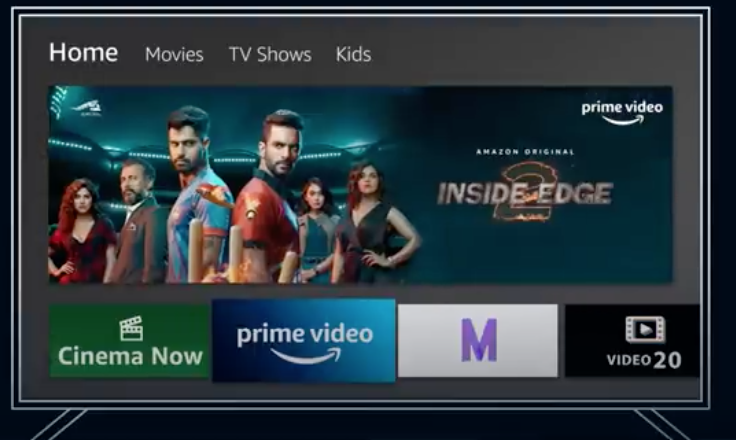
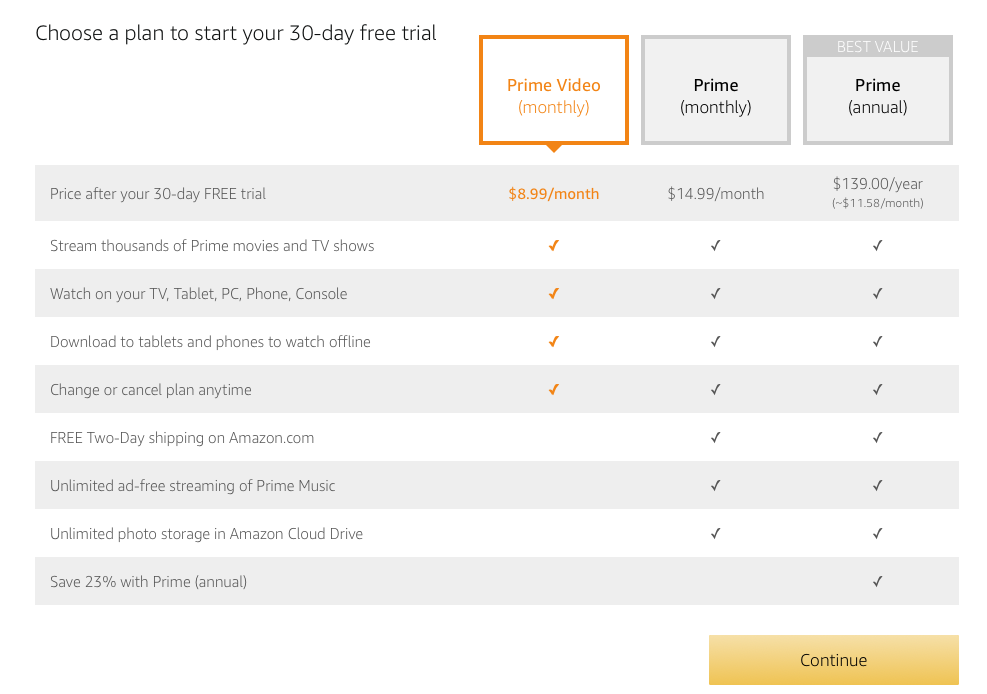
Amazon Prime Video is Amazon’s video streaming service. Its competitors include Netflix, Disney+, etc. Prime Video is included with an Amazon Prime membership for $14.99 a month or $139 a year. If you’re not interested in any of Amazon Prime’s other perks, you can sign up for Prime Video on its own for $8.99 a month.
Amazon streams video using adaptive bitrate technology, which adapts the image quality depending on your device and internet connection. Its subscription includes 4K Ultra HD streaming. You also need to be able to attain decent broadband speeds.
Unlike Amazon Prime Video app for Mac and Windows, the Amazon Prime Video app on your smart TV doesn’t have Download option. Movies and TV shows you downloaded on Mac and Windows can’t be transferred to TV since the downloaded videos are DRM protected.
To watch Amazon Prime Video offline on your TV, the only method is to download movies and TV shows from Amazon Prime Video to MP4 and then play them on your TV from USB drive. All you need is Pazu Amazon Prime Video Downloader.
Pazu Amazon Prime Video Downloader is a professional video downloader tool for users to download any movies, TV shows, originals, sport, titles from Channels as well as purchases&rentals to MP4/MKV in 1080p. After that you can transfer these videos to USB drive and play them on any TV, whether it has Amazon Prime Video app or not.
Features:
To get started, first you need to download, install and run the Pazu Amazon Video Downloader app on your Mac/Windows. Select AMAZON and sign in with your Amazon account.

Click the Settings icon > “Register” and enter your registration code to unlock the full version if you have purchased a registration. If you haven’t, go ahead with the free trial version.
Select the Search tab on top and start typing the name of the movie or the TV show. Now browse through the results and find something you want to download.

Or you can copy-paste the link of the TV show or movie. Click the search icon to find the TV show or movie you’re looking for.
Before starting to download anything, you’ll need to choose the video quality setting. To do that, tap the Settings icon at the upper right and select “Preferences”. It is easy to select the output settings at this step using video formats, video codec, audio languages, or subtitle languages.

Tap the download icon next to the movie or TV show you want to download.
If your selection is a movie, click  icon next to it and the downloading begins.
If your selection is a TV show, click icon next to it to select the episodes you want to download.

Before downloading, you can also click  to choose subtitles and audio tracks for each episode. Audio and subtitle languages in Settings only show the 6 common languages. Here you can choose any language from whatever the movie or TV show provides.


Then click Download.
To find the content you’ve downloaded, click the History icon at the top.

Now transfer the downloaded MP4 videos to your USB drive and watch them anywhere you want.

Download Amazon Prime Video movies and TV shows to MP4/MKV on your PC/Mac