

Want to take your Hulu viewing experience to the big screen of your TV? More and more smart TVs now support the Hulu app. If your TV is old and doesn’t support the Hulu app, you can use streaming players, gaming consoles, or set-top boxes instead. Besides, you can also use AirPlay or Chromecast. In this guide, we’ll explain 6 ways to get Hulu on TV. Read on to find out how to watch great shows on any TV model, even offline.
The Hulu app should come pre-installed on supported LG TVs, including those with webOS 3.5 or later, or those powered by Roku TV (LF5700 series). Certain devices with webOS 3.0 also support it. Just launch the Hulu app, log into your account, and start streaming.
You can get the Hulu app on Samsung TVs from 2016 or later:
Hulu supports selected Android/Google smart TVs, such as Sony Bravia (2015+ models) and Hisense TVs running on the Android or Google TV platform.
If the Hulu app was pre-installed on your Android or Google TV, simply log in to start streaming. Otherwise, follow the steps below to download the app:
Hulu supports VIZIO Smart TVs from 2016 or later. Find the Hulu app pre-installed from the App row on the Home Screen.
Related: How to activate Hulu on TV?
The Hulu app supports Apple TV devices running tvOS 15.3 or later, including Apple TV 4th generation and Apple TV 4K. Go to the App Store, search for Hulu, and install the app. Enter the password for your Apple account if requested.
Hulu is compatible with most Amazon streaming devices, including the Fire TV Stick (2nd Gen and newer), Fire TV Stick 4K, 4K Max, HD, and Lite.
To install Hulu:
The Hulu Channel comes pre-installed on many Roku devices. Make sure to update your device to Roku OS Version 11 and above. If you don’t see the Hulu app, follow the steps below to add it:
Hulu is no longer supported on Nintendo Switch after November, 2025. However, you can still download the Hulu app on PlayStation 5 and 4, and Xbox.
You can AirPlay Hulu to Apple TV (4th generation or later) with the latest Hulu app on your iPhone or iPad. If your smart TV has built-in AirPlay support (such as compatible Samsung, LG, or Vizio TVs), you can also AirPlay Hulu to it from your iPhone or iPad running iOS 16.4 or later.
To AirPlay Hulu from your iPhone and iPad:
You can cast Hulu to a Chromecast-enabled TV from mobile or desktop devices.
To cast Hulu from your iOS and Android device:
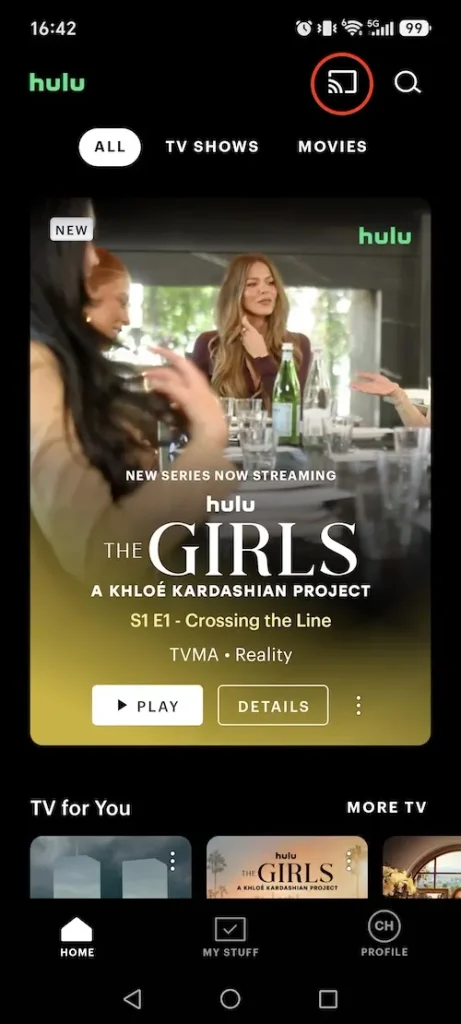
To cast Hulu from a Computer (Google Chrome):
All of the above ways allow you to stream Hulu shows and movies on a supported TV. Quality will automatically adjust based on your available bandwidth, ensuring you always have the best picture quality possible for streaming. If you are experiencing buffering and other playback issues due to a poor internet connection, you may want to download Hulu videos and watch them on TV offline. If you’re wondering how to access Hulu offline on your TV, we’ve got your back.
Pazu Hulu Video Downloader lets users download various movies or TV shows from Hulu to MP4 or MKV format on Mac and Windows. After that, you can watch them offline on TV through a USB or HDMI cable.
Download, install and launch Pazu Hulu Video Downloader on your Mac or Windows. Click the HULU icon, choose hulu.com or hulu.jp, and log in to your Hulu account.

Select a profile.

Enter the movie/TV show title in the search field under the Search tab.

Or copy&paste the link of the movie/TV show from the Hulu website. Then click the Search icon.

Click the 3-lines icon on the top right corner – Preferences to change:

If your selection is a movie, click the download icon next to it and the download begins.

If your selection is a TV show, click download icon next to it to select episodes you want to download. Then click Download button.

After the videos are downloaded, click History button to quickly locate them. Now you can use an HDMI cable to connect your computer to TV and play the downloaded videos or transfer them to USB drive.


Download Hulu Video movies and TV shows to MP4/MKV on your PC/Mac